Place Terminal, Accessory, or Equipment
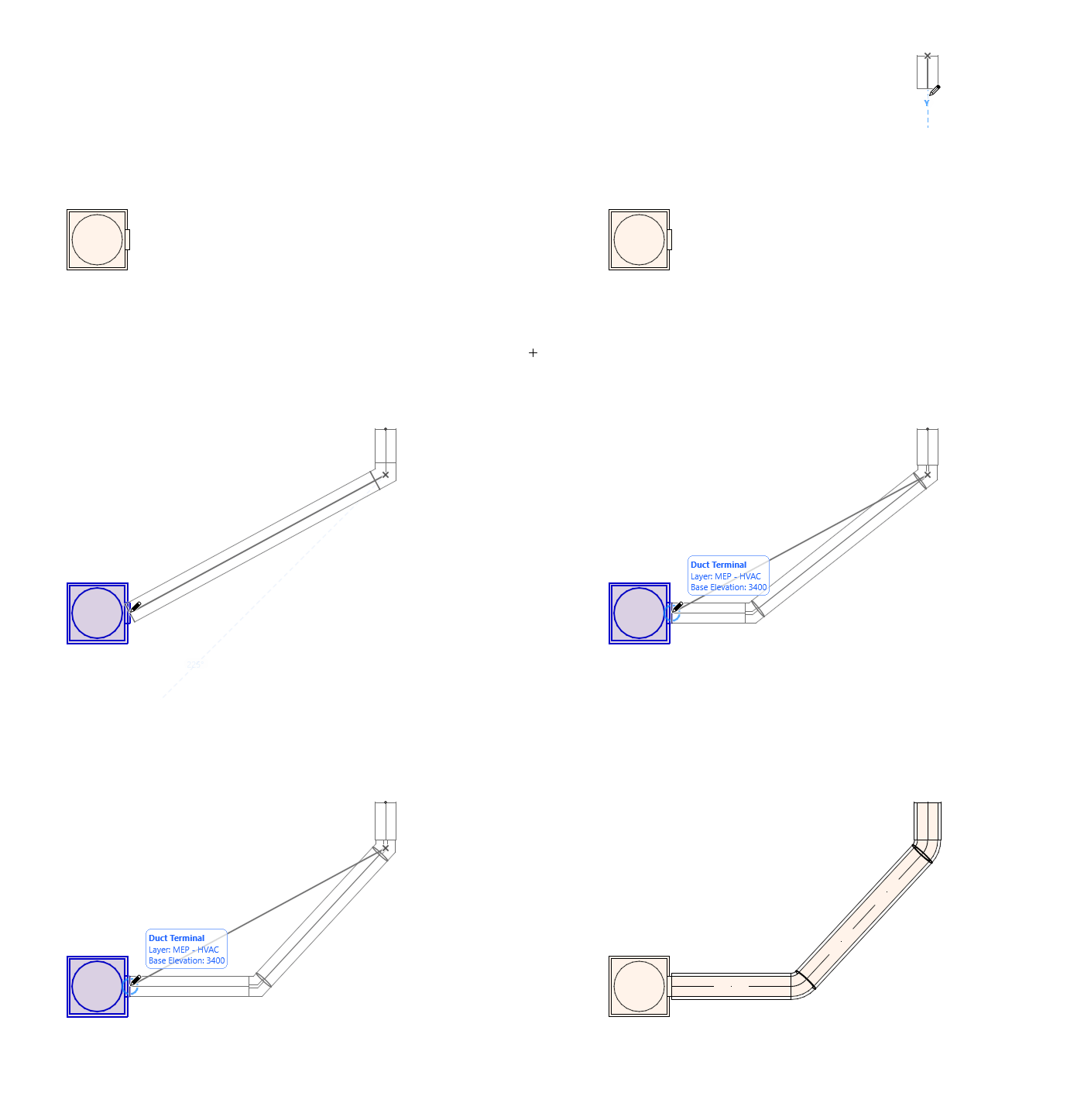
Use the Terminal, Accessory, and Equipment tools, in the Floor Plan or 3D window, to place these MEP elements, then connect them to a route.
A route and an MEP element can only be connected if they have the same MEP System. (See Assign MEP System).
•When drawing the route, compatible MEP elements are highlighted upon contact
•When ending a route element on a terminal, accessory or equipment, use the up and down arrow keys to see alternative paths to connect the route
•When you connect a route element to a standalone MEP object: the route element automatically “inherits” the object’s MEP System and Connection type
The route will connect correctly to the MEP element. Connection geometry includes (as applicable): shape, height/width, thickness of element wall, connection type (e.g. flanged or not): these are the same parameters you set in the Connections tab page of the element’s MEP Custom Settings tab page.
See also MEP-compatible Library Parts.