Apply formatting to cells by category
You can customize text, borders, and background color for each cell category (such as “totals” cells and “header” cells).
- Do one of the following:
- From the Format Options popup, choose a cell category to format:
- Click into a schedule cell to choose its cell category for formatting
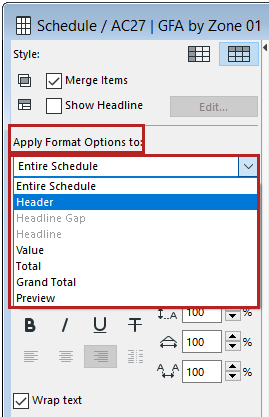 Note: The “Preview” cell category refers to the element Preview pictures in the schedule. (See Format Preview Picture .)
- Set text formatting and cell borders for the chosen cell category.
Note:
- When formatting text, you can apply saved Text Favorites (see also Apply a Favorite )
- The “leading” control modifies the vertical line spacing, as a percentage. Enter a number or use the up-and-down arrows to change the value in increments of 25 percent.
- Wrap text: Automatically fits text into column width
- Set the cell background color (see Cell background colors)