Place MEP Route
- Activate a Route tool from toolbox: Duct Route, Cable Carrier Route, or Pipe Route.
- Reference line is at the center of route segments by default. Enter an
offset or adjust alignment in the Info Box as needed. (see also Edit segment reference line -
alignment and offset)

- In Floor Plan, Section or 3D window: Click in series to define the
segments and nodes of the Route polygon.
- Each click represents a node, which connects the adjacent segments.
- Press Backspace to delete the last placed segment
You can also start routing from an existing port. To choose among overlapping ports: use Tab key to cycle through the available ports, then select the one you need.
- To complete the Route, click a second time at the end of the final segment.
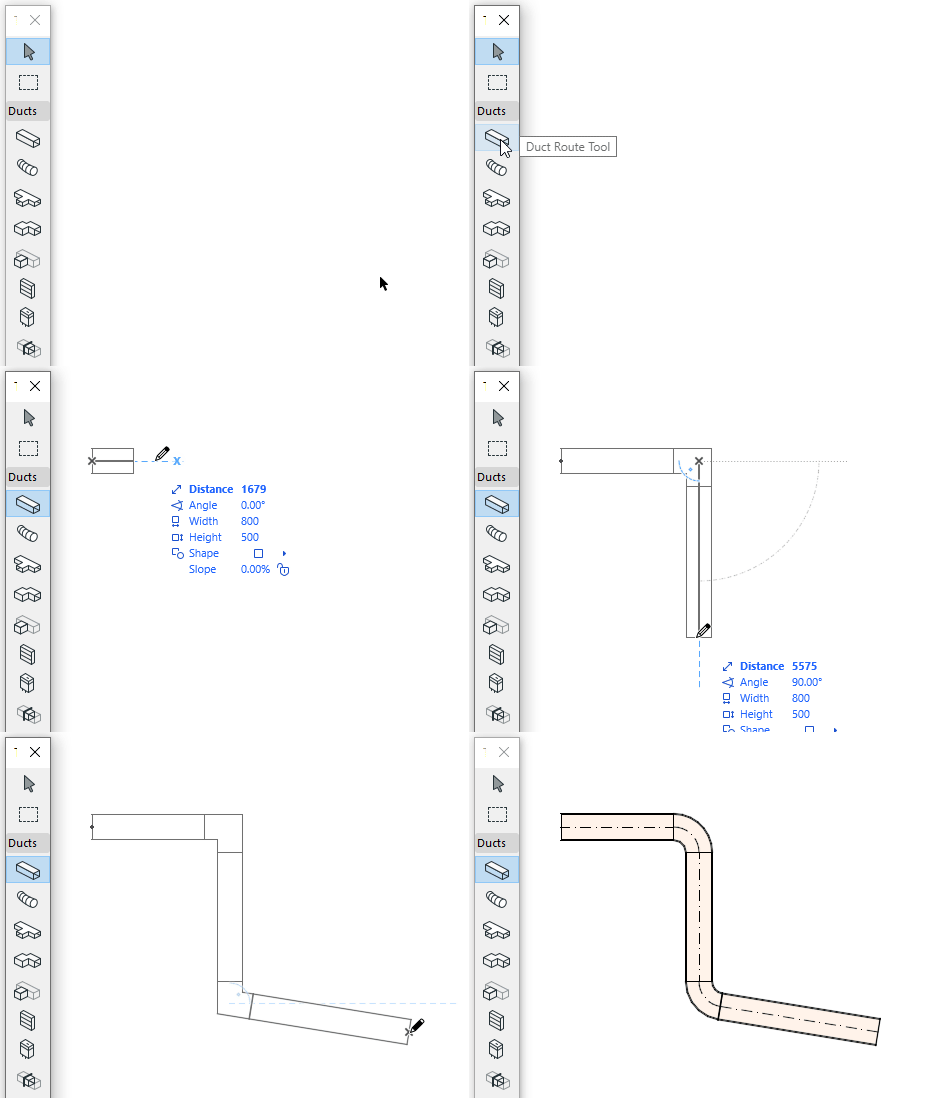
Elbows and transitions are automatically generated at each node.
Change Route parameter on the fly
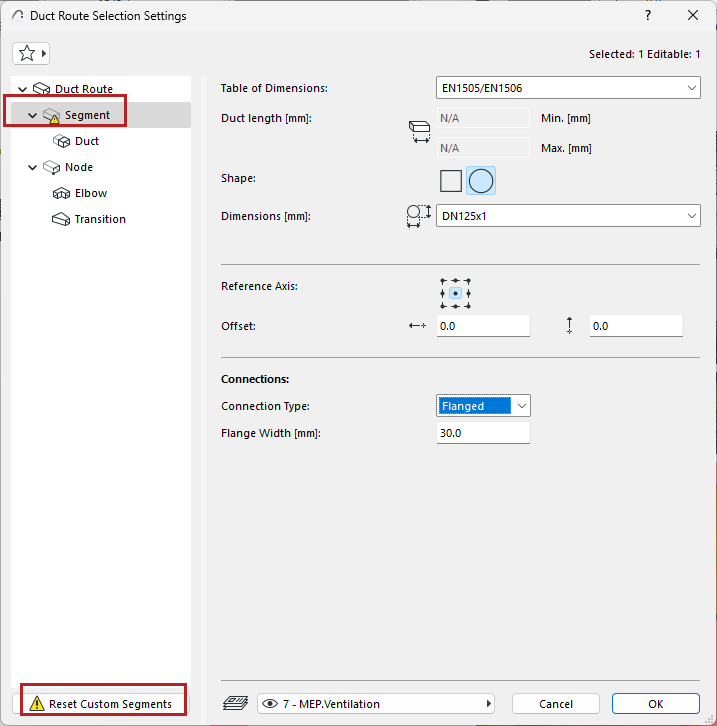
Once you start placing a route element, you can change its cross-section in the Tracker.

Because you have changed the segment’s default parameter value, it is shown in the settings dialog as “custom”.
Merge Routes
Routes will merge if:
Place Route with Magic Wand
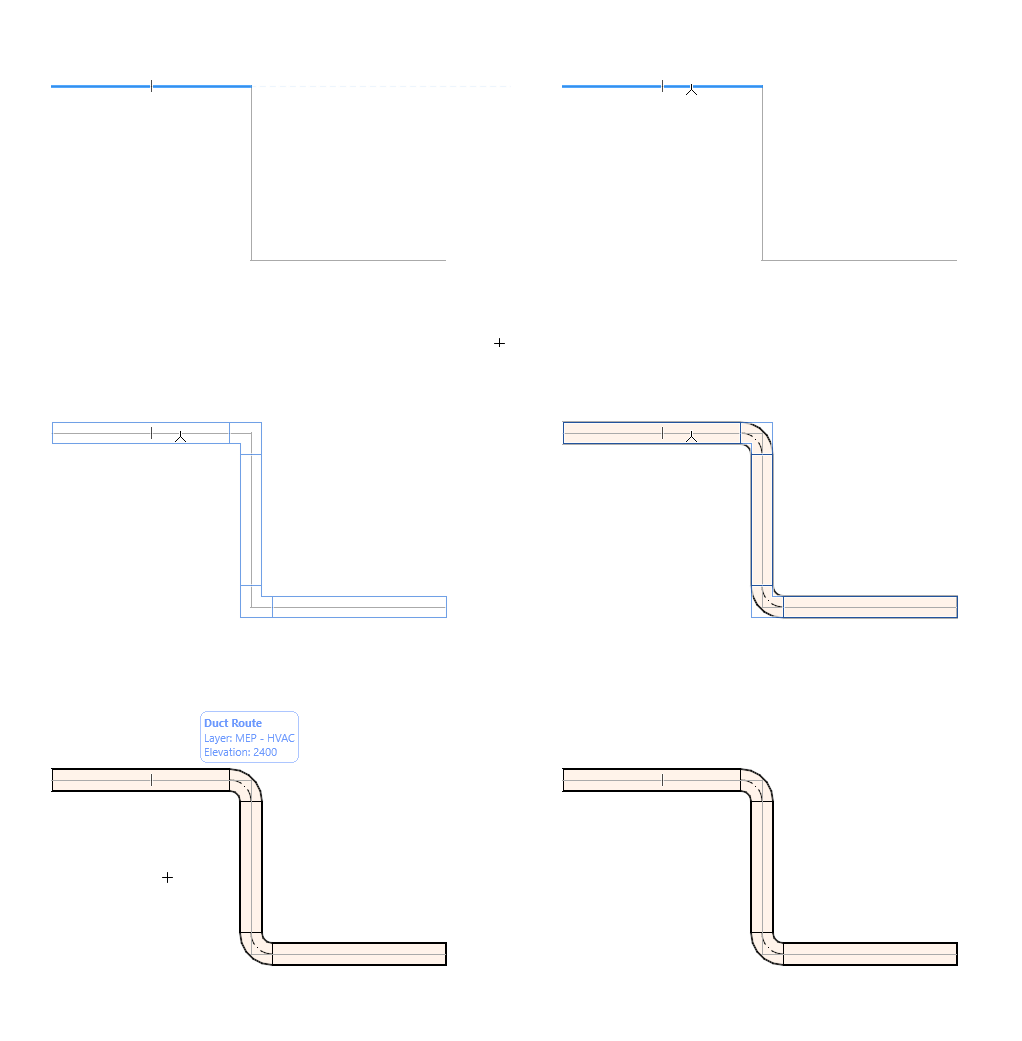
Use the Magic Wand to place a route with a single click, based on an existing polyline or polygon.
Flexible Duct and Flexible Pipe Segments
Use these tools to easily create a flexible geometry using spline-type input. Click the port of an existing route element to connect it, or double-click to end input.
The flexible duct or pipe will not add transitions at the ends, and connections having different dimensions must be solved in the route.
See also Edit route graphically.