Attribute Replacement Manager
In this dialog, set up rules to replace pen, fill, and line type attributes one by one.
- ProKit > Annotate > Manage Attribute Replacements
- from the Annotation Replacement dialog: click Edit Rules next to Attribute replacement
Rules are stored with the project. Defining a rule does not change anything on its own; the replacement runs only when you click Replace in the Annotation Replacement dialog.
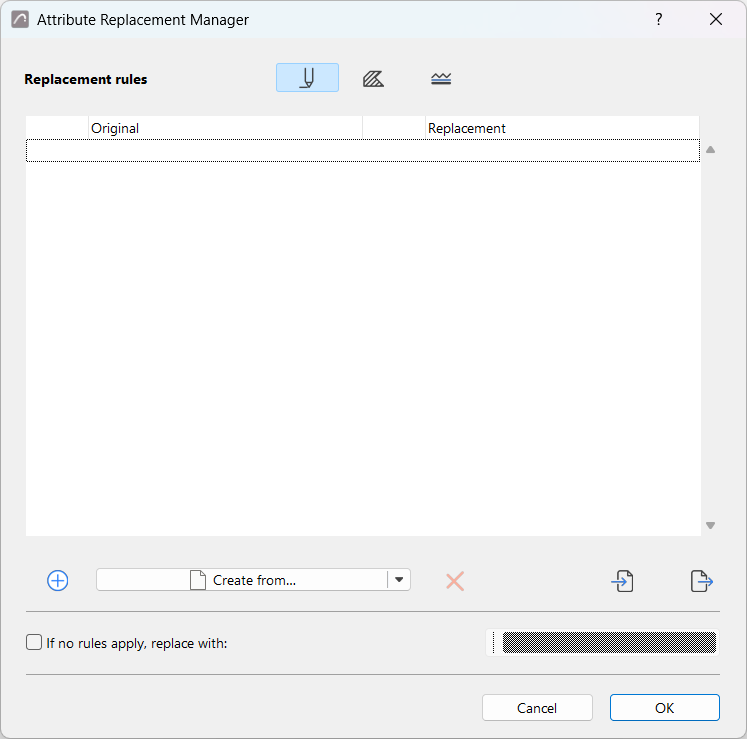
Select the attribute type: pens, fills, line types
The three icons at the top of the dialog switch between pens, fills, and line types. Each type has its own independent rule list.
Add rules
Do one of the following:
- Click the Plus button (at the bottom of the dialog) to add a single empty rule to the list.
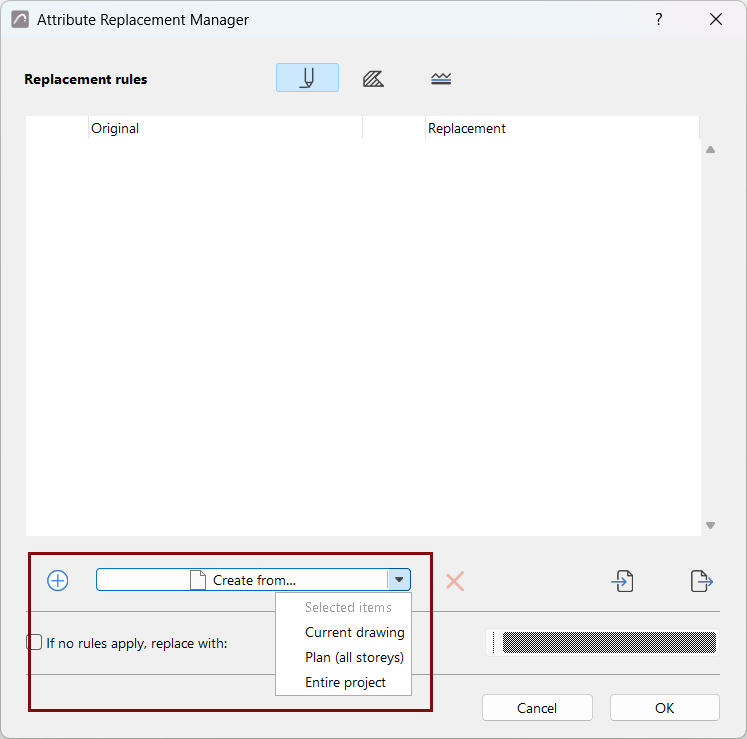
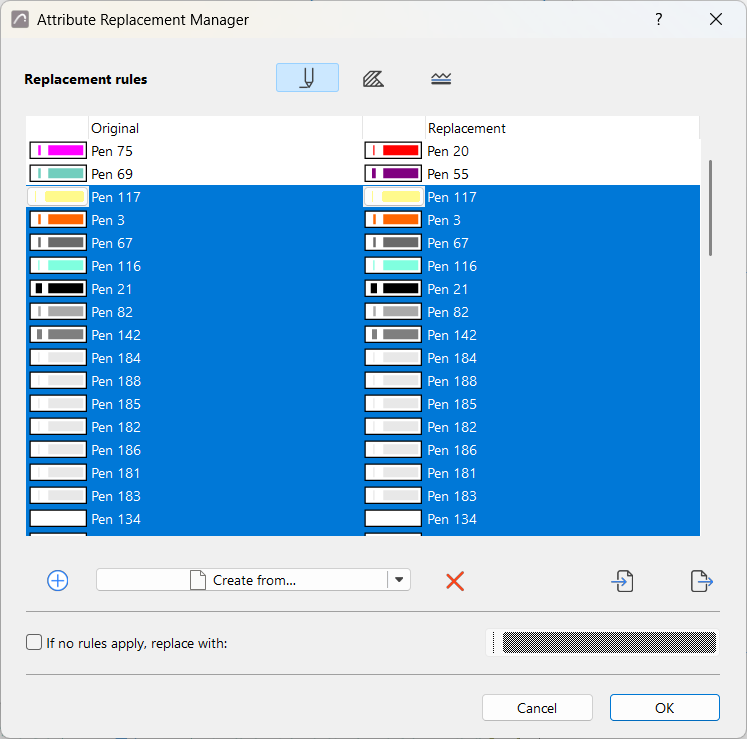
- Click Create from to generate rules automatically from the attributes
already used in the project.
Choose part of the project to add the attributes used by those elements to your replacement list:
- Selected items
- Current drawing (the currently open tab/view, e.g. Floor Plan or Section)
- Plan (all stories)
- Entire project
Define a replacement rule
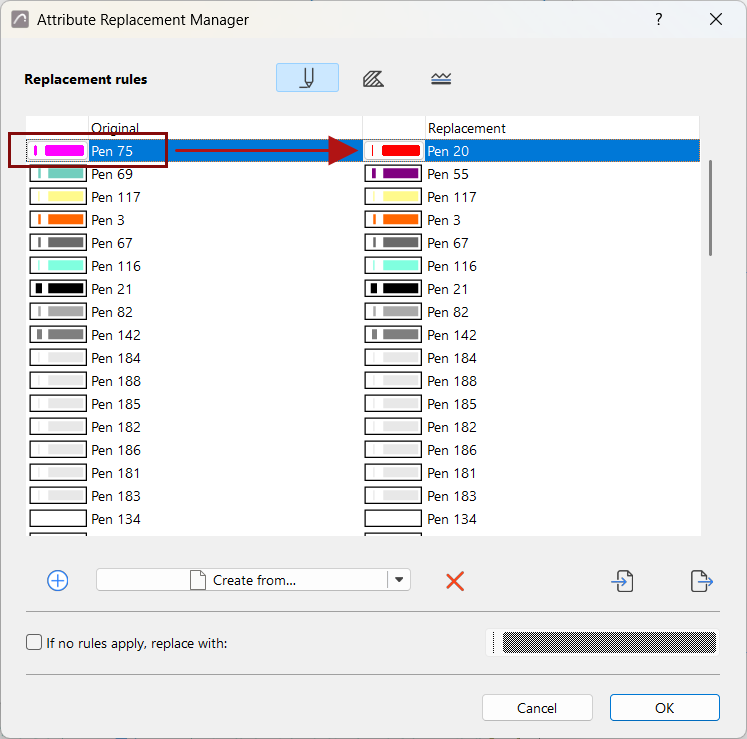
Each rule is a one-to-one pair. Edit only the pairs you want to change.
For each rule, use the attribute choosers in the Original and Replacement columns to select the attribute to find and the attribute to apply in its place. For example, replace Pen 75 with Pen 20.
Replace all unmapped attributes (optional)
You can also define a general replacement rule for attributes not covered by the rule list. Check If no rules apply, replace with and select an attribute to define a catch-all. Every attribute of the current type that is not covered by a specific rule will be replaced by your selected attribute.
To apply only the specific one-to-one rules, leave this box unchecked.
Manage rules
- Select one or more rules and click the delete icon to remove them
- Use the import icon to load a rule set saved from another project
- Use the export icon to save the current attribute's rule set (pens, fills, line types) for reuse in another project.
Imported rules are appended to the current rule list.
The import/export files for attribute rules use the following extensions:
- Fill Conversion File
.convertfill - Linestyle Conversion File
.convertline - Pen Conversion File
.convertpen
Click OK to keep your changes, or Cancel to discard them.