Annotation Replacement
Use ProKit > Annotate > Replace to replace attributes and texts fonts and case based on specified rules. Only the replacement types that you enable will be applied.
This dialog also controls which part of the project should be affected by the replacement.
The replacement rules themselves are defined in the three managers reached through the Edit Rules buttons.
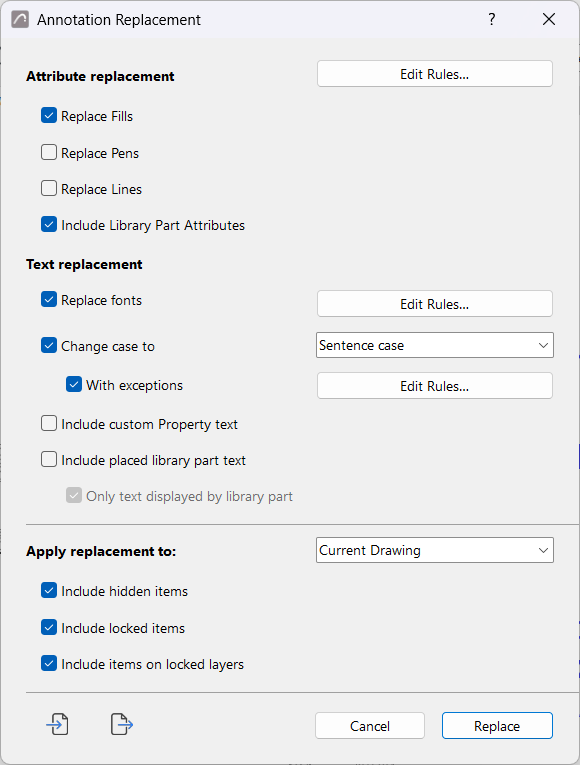
Attribute replacement
Check Replace Fills, Replace Pens, and/or Replace Lines to apply the rules defined for those attribute types.
To define the rules, click Edit Rules to open the Attribute Replacement Manager.
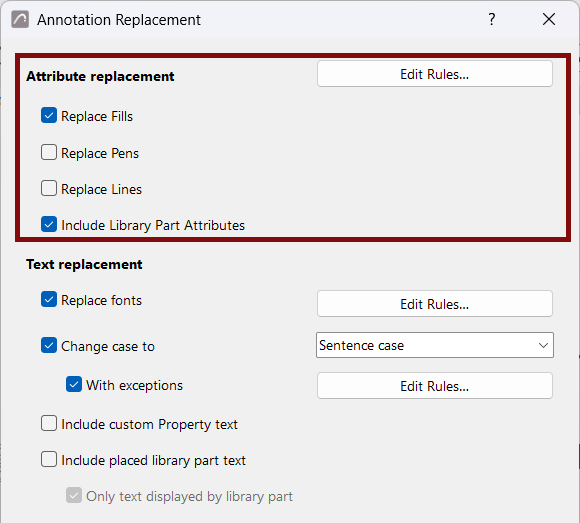
Include Library Part Attributes: Check this to also replace attributes referenced by placed library parts, such as the fills and pens used in an object's 2D symbol.
Text replacement
Replace fonts: Applies the font rules defined in the Font Replacement Manager. Click Edit Rules to specify which fonts should replace which.
Change case to: Applies a single case standard to the project's text strings. Select one of:
- Sentence case
- UPPER CASE
- lower case
- Title Case
With exceptions: Preserves the case of specific strings, such as unit abbreviations and proper nouns. To define these exceptions, click Edit Rules to open the Case Exception Manager.
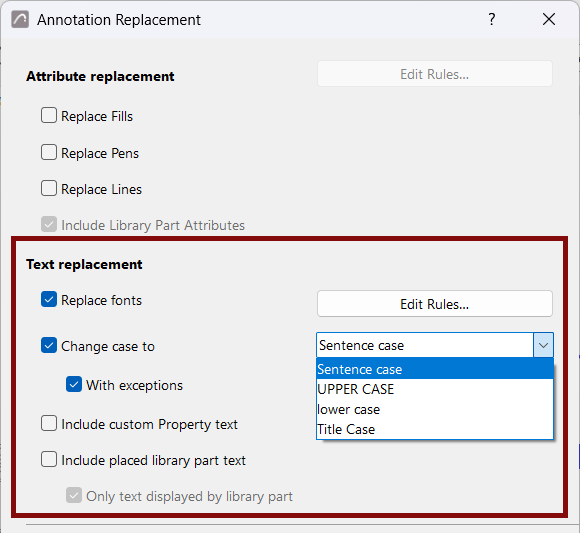
Font and case replacement apply to text elements and labels. To also replace other texts, use the following options:
- Include custom Property text: Also replaces the text values of custom properties
- Include placed library part text: Also replaces string parameter values
of placed library parts, such as objects, doors, and windows
- Only text displayed by library part: Only replace strings that are displayed in 2D. Use this to avoid altering text that the object contains for other purposes.
Apply replacement to
Choose the scope of the replacement:
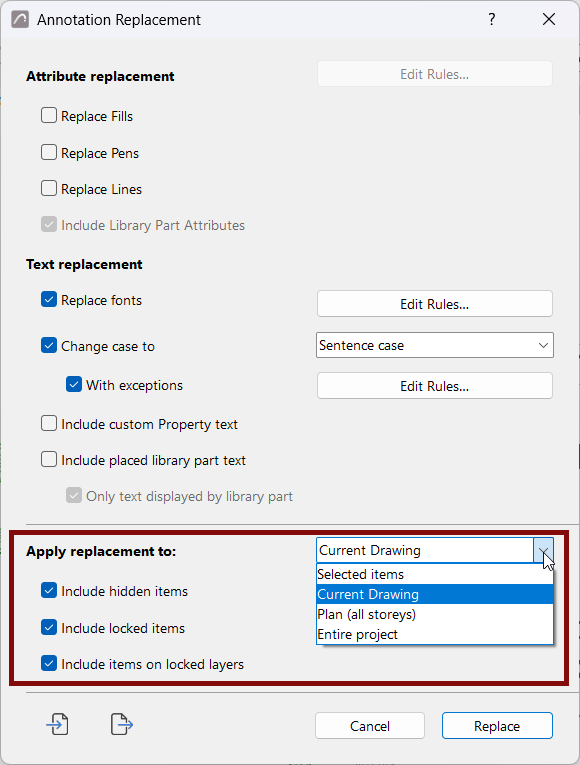
- Selected items
- Current Drawing (the currently open tab/view, e.g. Floor Plan or Section)
- Plan (all stories)
- Entire project
Check the boxes to replace attributes or text for the following items, too:
- Include hidden items: Elements on a hidden layer, or hidden by the current Renovation Filter
- Include locked items: Elements that have been explicitly locked
- Include items on locked layers: All elements on locked layers
Run the replacement
Click Replace to apply all enabled rules within the selected scope, or Cancel to close without changes.
If needed, you can undo the Replace.
Import or export Annotation Replacement set
Use the import and export icons at the bottom left of the dialog to save your replacement rules. Then you can reuse them in another project.
If you import a replacement rules file, the imported rules are added to your current rule lists without overwriting them.
The import/export files use the .conversion
extension.