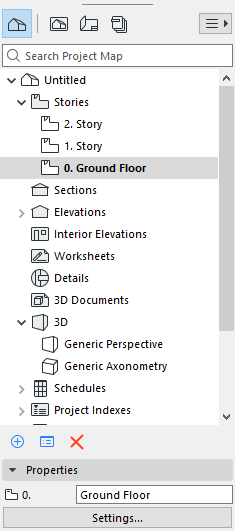
The Navigator palette is a tree structure containing the entire logical structure of your project. It is shown by default at the edge of your screen.
The Navigator contains all of your project’s viewpoints, views, Layouts and Publisher sets, listed in four maps.
Find and double-click any item in any map to open it.
Use the search field to locate items by name.
Once opened, the item is listed in bold.
Notice: When you open a new view or new layout, it can either
replace the opened view/layout, or open in a separate new tab. Change this preference in
Options > Work Environment > More Options.
Exception: You can have only one Floor Plan and one 3D window open at a time.
Tree structure of project viewpoints, organized in folders. Viewpoint icons (in Navigator and tab bar) are black.
View Map
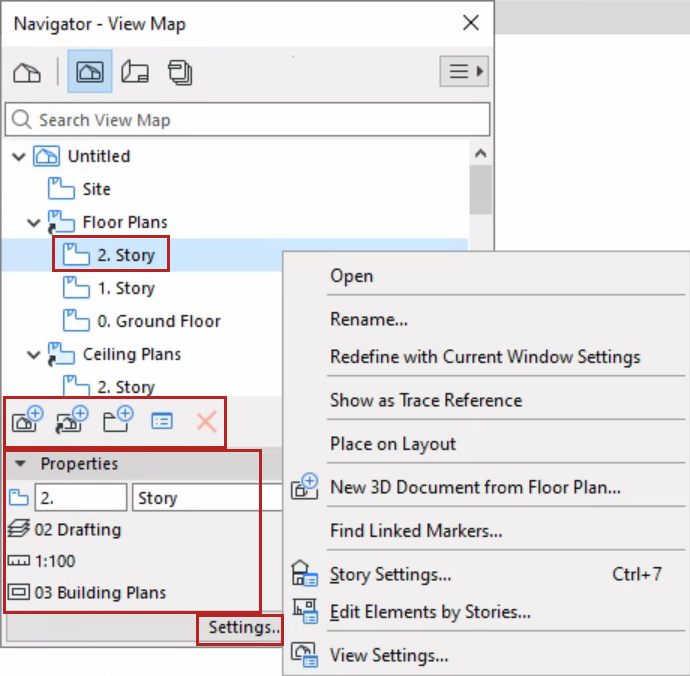
List of the project’s saved views. A view is a stored version of a viewpoint; each view is defined by its View Settings, which you configure for a particular purpose. View icons (in Navigator and tab bar) are blue.
Layout Book
All the project’s Layouts with their Drawings, optionally organized into subsets, and formatted based on Master Layouts.
Publisher
Publisher map items are views and Layouts collected in Publisher Sets. Set output methods and format here.
Organizer
The Organizer is a special mode of the Navigator. The Organizer, with two tree structures side by side, makes it easier to move items from one map to the other.
Important: Operations involving Navigator/Organizer items (such as drag and drop between Navigator maps, deleting items from the Project Map or View Map, or adding items to the Publisher set) are not added to the undo queue, and are not undoable.
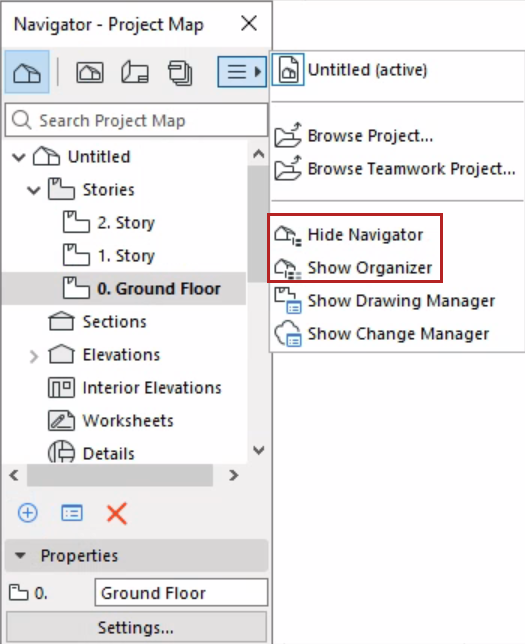
Show/Hide Navigator or Organizer
Do one of the following:
Window > Palettes > Navigator
Window > Palettes > Organizer
Context menu commands from the palettes
Project Name in Navigator
The project gets a name once you save the project file.
If you enter a different Project Name in File > Info > Project Info, the Navigator will display that name instead.
Commands in Navigator
For any selected Navigator item:
Use context menu commands
Click Settings button
Use the command buttons at the bottom of the map
View/edit a selected item’s Properties
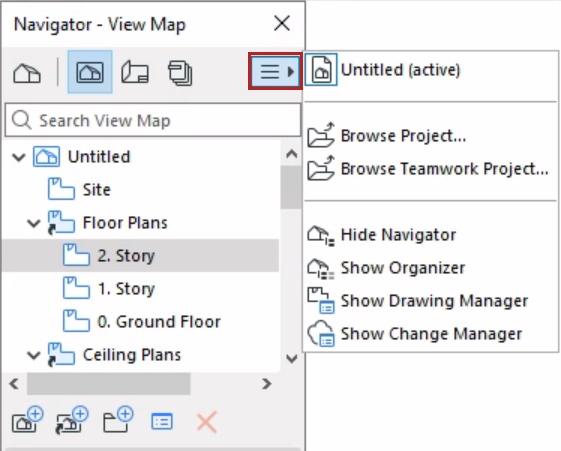
Show/Hide Related Dialogs
Use the Chooser pop-up to show or hide the Navigator palette and related dialogs, or browse another project: