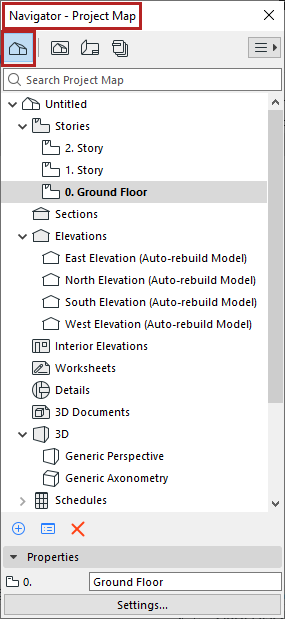
Tree structure of project viewpoints, organized in folders. Viewpoint icons
(in Navigator and tab bar) are black.
Use the search field to locate items by name.
What is a viewpoint?
A viewpoint represents a window onto a particular part of your project.
Viewpoints are listed in the Navigator Project Map, organized into
folders (one folder named for each type of viewpoint).
For section-type viewpoints, you can also freely organize them into any number of custom
sub-folders.
Note: Once you save a viewpoint’s settings, a view is created
(and added to the View Map) and can then be placed onto a Layout.
Folders of the Project Map
Stories
All the Stories defined for the project.
Note: In the Project Map, the Story ID is not editable. A Story
ID is identical to its Story Number, which can be set in Story Settings.
Sections, Elevations, Interior Elevations,
Worksheets, Details and 3D Documents
Folders containing corresponding viewpoints.
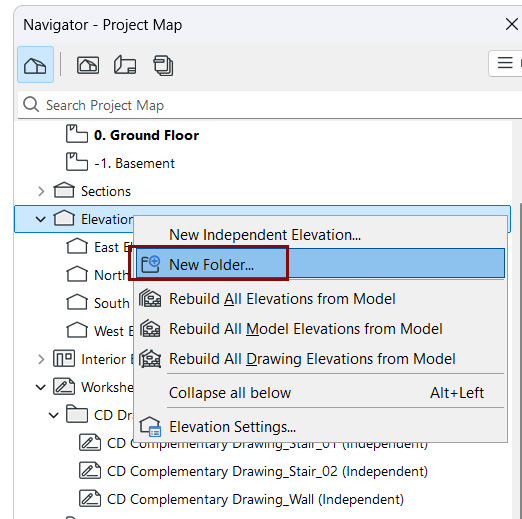
For these viewpoints, you can create any number of custom folders and sub-folders:
right-click an item, then use the context menu commands to create a new folder.
Drag and drop (section-type folders and viewpoints)
Drag and drop your viewpoints freely among different folders, at any level
Multi-select viewpoints and/or folders, and drag them all at once to a new
location
Drag and drop is only possible within the same section of the Project Map Tree. For
example, you cannot drop elevations into sections.
After drag and drop, items with matching names are automatically renamed by adding a
running number
Interior Elevation families cannot be separated: parent and child elements always
move together
Note: You can clone any Project Map folder to create a corresponding
set of linked views in the View Map. If you move section-type viewpoints to different
folders in the Project Map, the clone folders in the View Map are automatically
updated.
3D
Contains 3D projections and any camera paths.
Two default projections are provided: Generic Perspective and Generic
Axonometry.
When you place cameras in the project, their names appear in the 3D
folder, grouped under the path.
Contains the interactive schedules (Elements, Components, Surfaces)
created as part of the project documentation. Use schedules as a basis for ordering
construction elements from manufacturers and for checking the consistency of elements based
on a set of criteria.