Compare Two Saved Versions of Current Model
This workflow is recommended for the following scenarios:
- Create design options, then compare them
- Compare views based on Renovation status
- View today’s progress: In the afternoon, compare the current model version to what it looked like this morning.
Example Workflow
- Use Design > Model Compare.
- The Model Compare window opens.
- From the Model Compare palette, click Select Model 1, and choose Current model. The timestamp is shown.
- Click on Select Model 2, and browse for an earlier saved version.
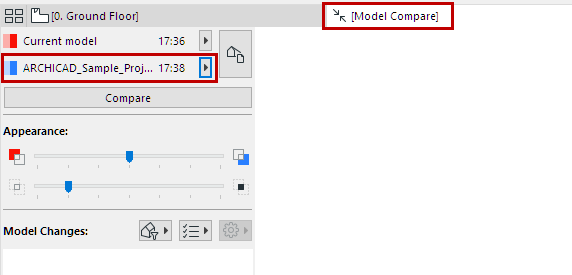
- When comparing two different views, current View settings can be significant. See Select View for Compare.
- Click Compare.
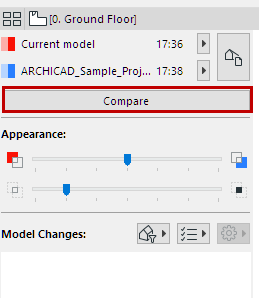
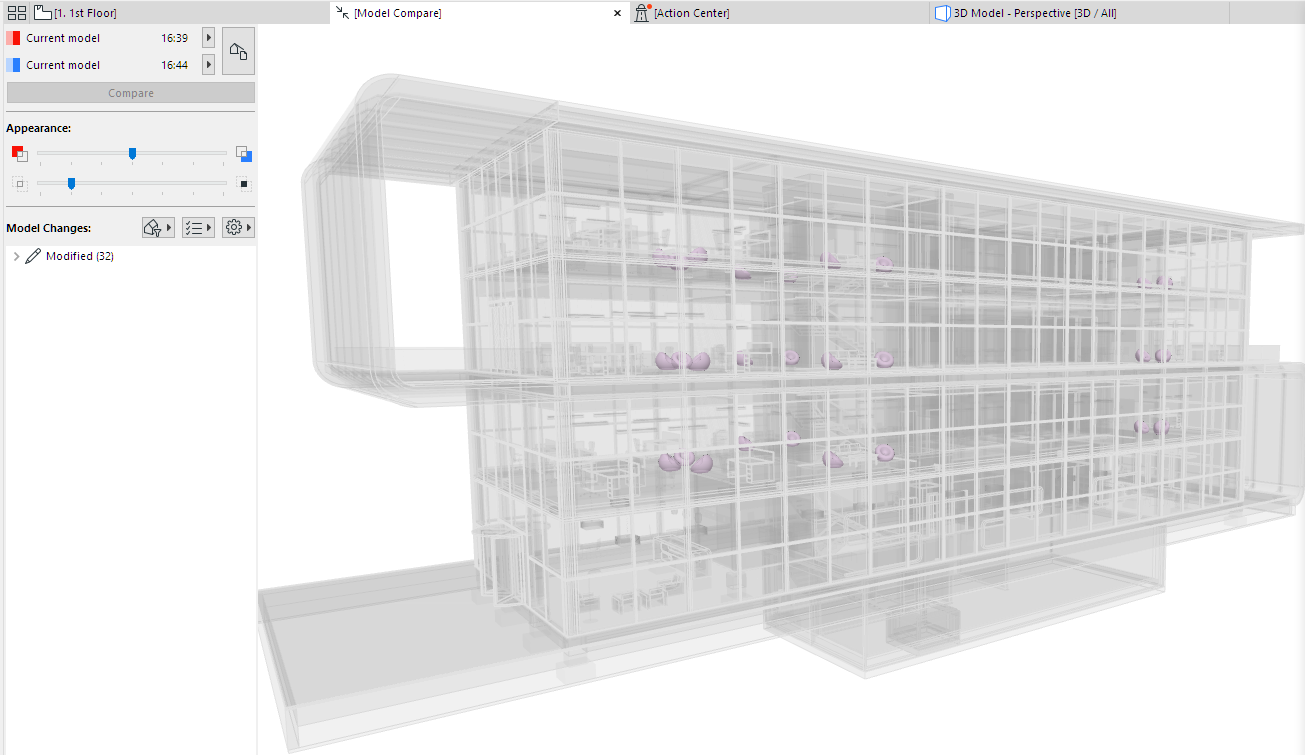
- Check the results in the Model Compare window.
Review the Model Compare palette to see what has changed.
See Model Compare: Review the Changes.
- As needed, create Issues.