MEP Systems
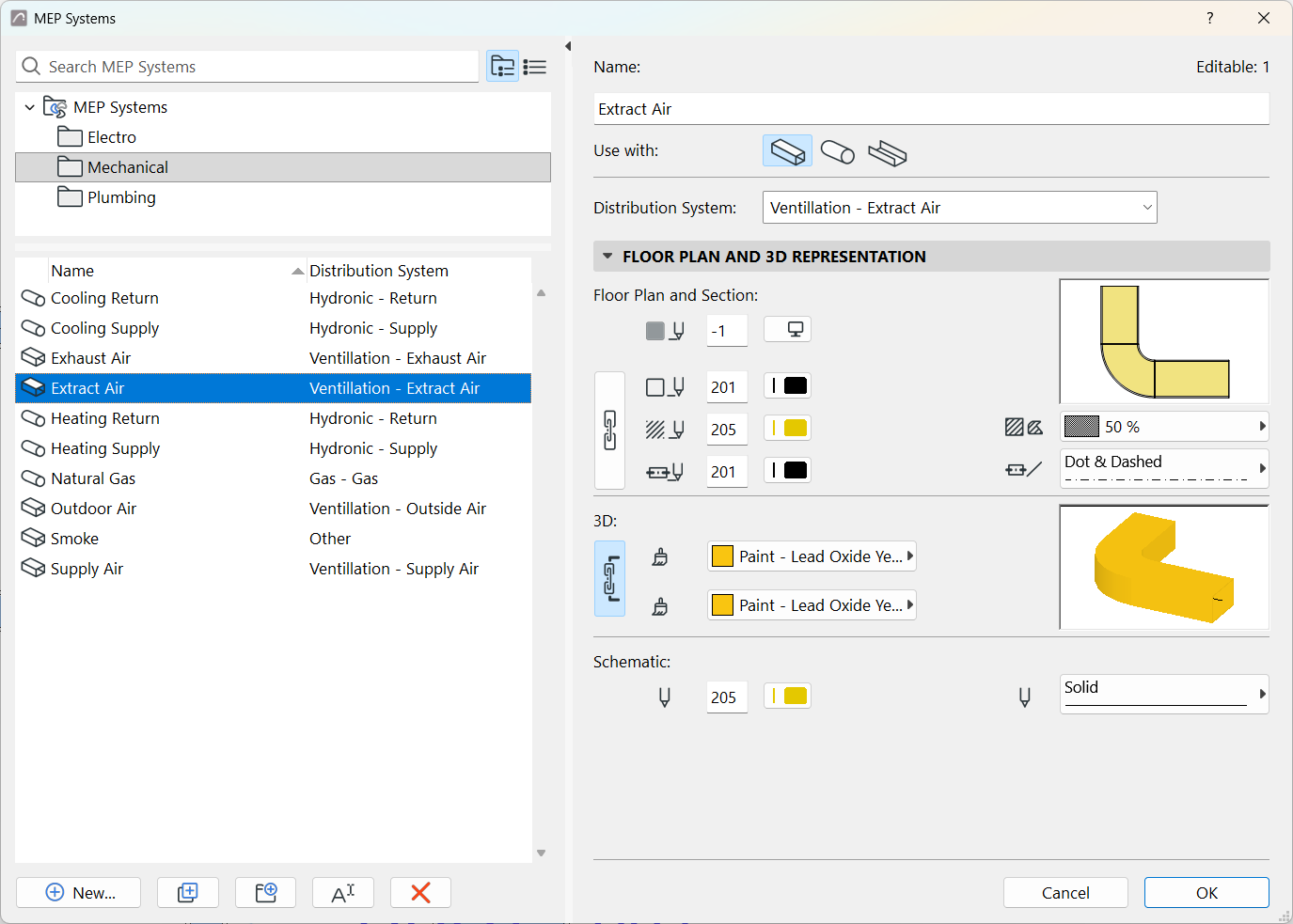
MEP Systems are project attributes. Create and save MEP Systems, then apply them to elements of the MEP model to control their display. For each MEP System, set up preferred fills, lines, and surfaces to fit your standards.
MEP Systems dialog
Open the dialog from
- Design > MEP Systems
- Options > Element Attributes > MEP Systems
- MEP Systems shortcut from the MEP Engineering toolbar
- MEP Systems shortcut from the System Browser
The left side lists the MEP System attributes of your project. You can create, duplicate, and rename them. To organize them by folder, just drag and drop.
For each selected MEP System, edit its data on the right.
The MEP Systems dialog commands are similar to those of other attributes. See: Using the attribute dialogs
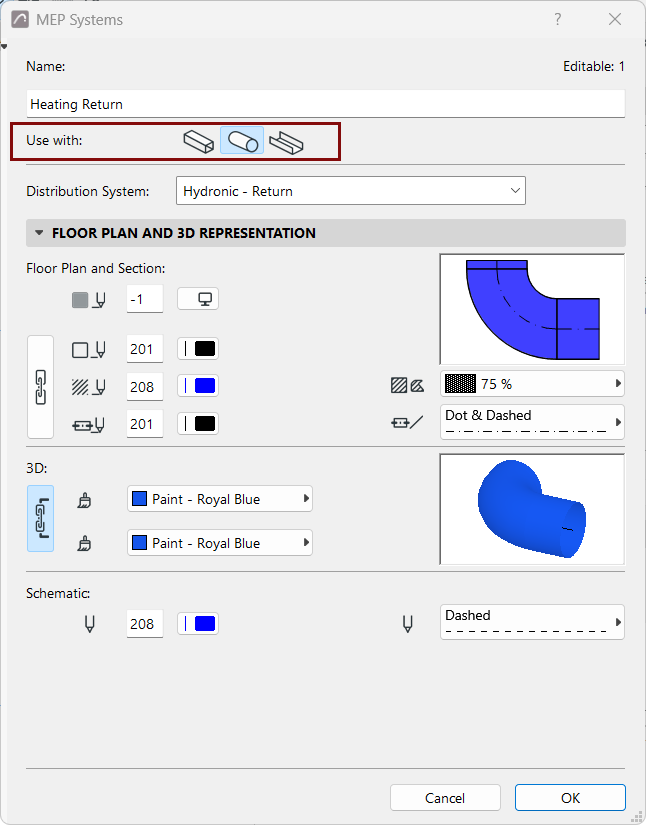
Use with (route type)
Each MEP System can be used by one route type: Duct, Pipe, or Cable. For each MEP System, click on one of these icons to choose its route type.
Assign Distribution System
Choose a Distribution System from the list. Assigning a Distribution System further classifies the MEP System (e.g. to indicate flow direction) and provides a clear definition for others collaborating on the project.
Available Distribution Systems vary depending on the selected route type (Duct, Pipe, or Cable). The set of Distribution Systems is fixed and cannot be edited.
Edit Floor Plan, 3D, and Schematic display
In the Floor Plan and 3D Representation panel: Use the controls to set fills, lines, and surfaces for the current MEP System.
Use the dedicated control to set a separate color and line type for Schematic display.
See also: Model View Options for MEP elements
Assign MEP System to a route or MEP element
- To MEP route: Each route is assigned an MEP System at the top
of the Route Settings dialog. See Route Settings - Branch,
Positioning, Insulation .
- If needed, you can override the assigned MEP System attributes at the route level: see Display of Route Element: Floor Plan and Section, Model Display .
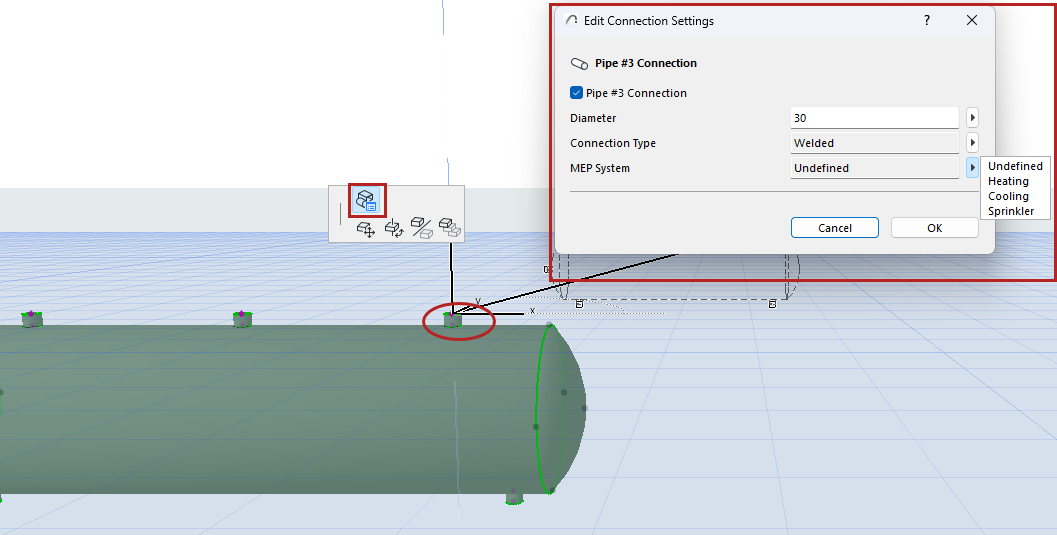
- Connect a route to a standalone MEP object: the route automatically “inherits” the MEP System of the object’s connection point.
- To Terminal, Accessory, and Equipment: Assign MEP System in element settings, using the Custom Settings panel (General or Connections tab).
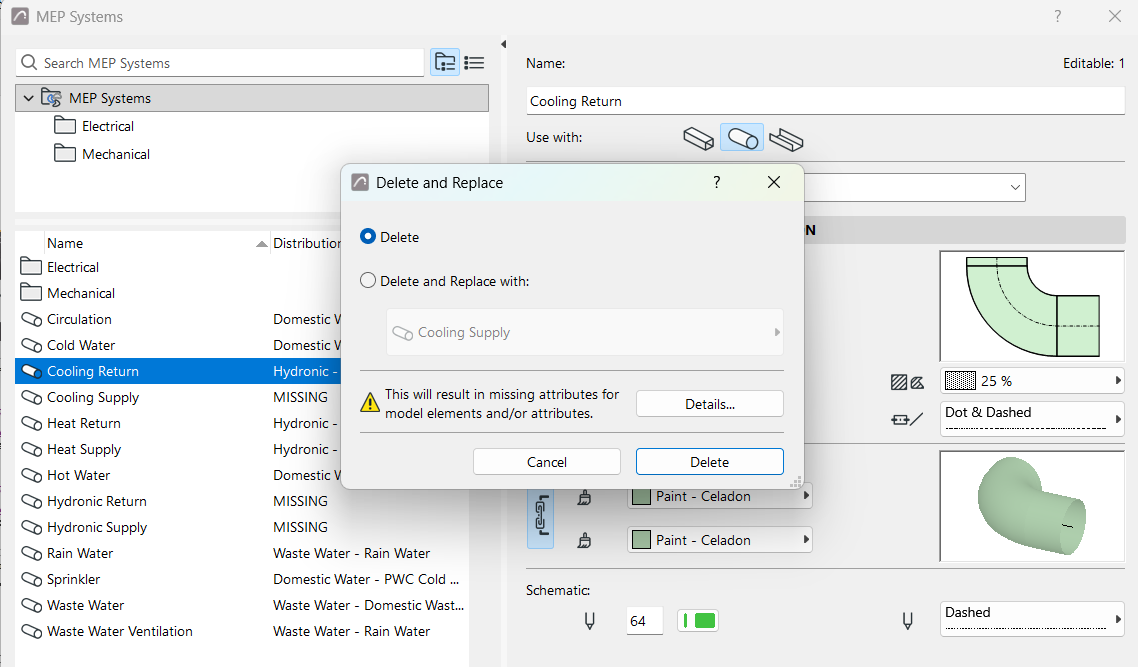
Delete/replace MEP System
If the MEP System has been assigned any elements, deleting it will result in missing attributes. To avoid this, you can replace the deleted MEP System with another one, which will then be assigned to the elements instead.