Create custom MEP symbol
Built-in floor plan symbols are provided for numerous MEP elements.
Note: Use Model View Options to display MEP elements on the Floor
Plan as Symbolic or Projected: see Symbolic representation of MEP elements)
If you prefer a customized symbol, you can edit the built-in symbol or draw your own.
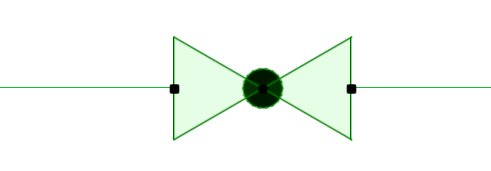
For example, here is the built-in symbol for a pipe valve.
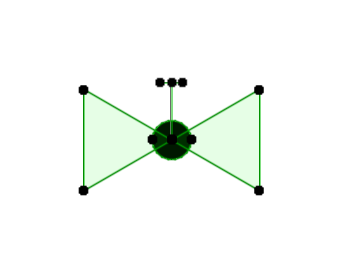
To create a valve symbol that has a handle:
- Do one of the following:
- Select your new symbol drawing.
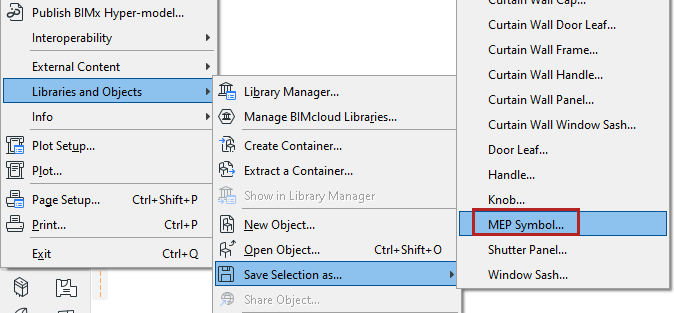
- Use File > Libraries and Objects > Save Selection As > MEP
Symbol.
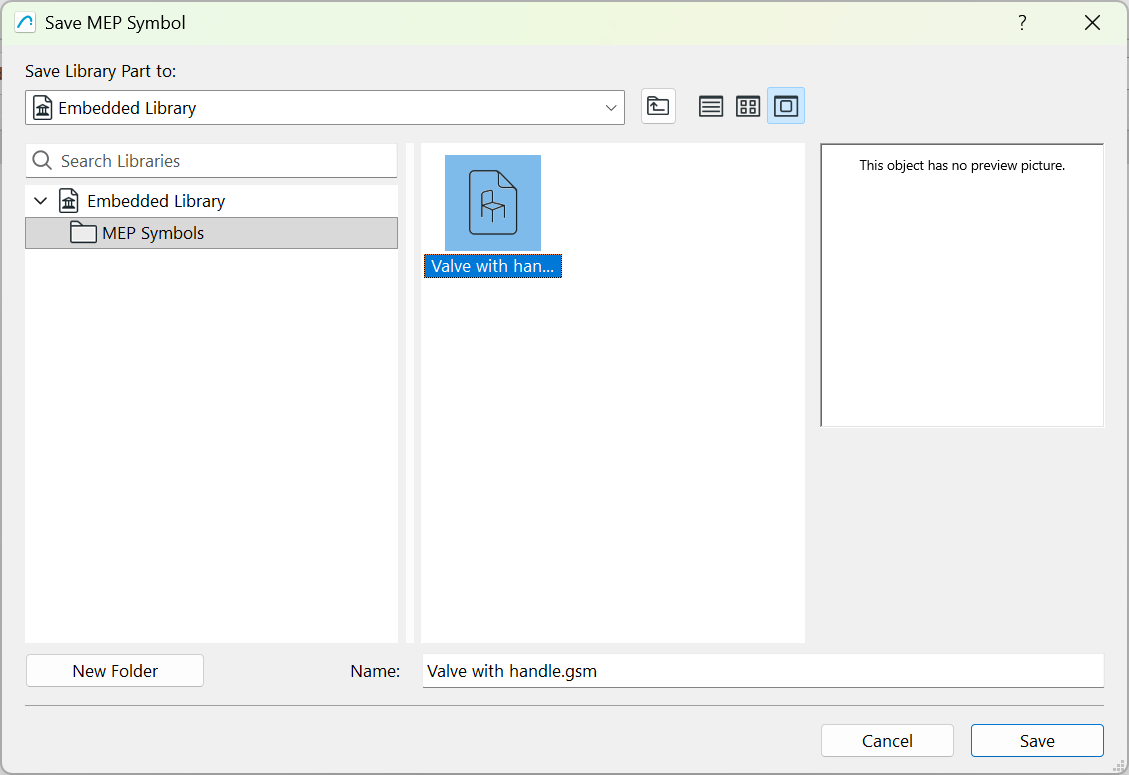
- Enter a file name and location, then click Save.
- In the model, select the MEP object symbol to be replaced (for example, this valve) and open its Object Settings.
- On the MEP Custom Settings page, go to the Visualization tab.
Instead of the Built-in Plan Symbol, choose Custom Plan Symbol.
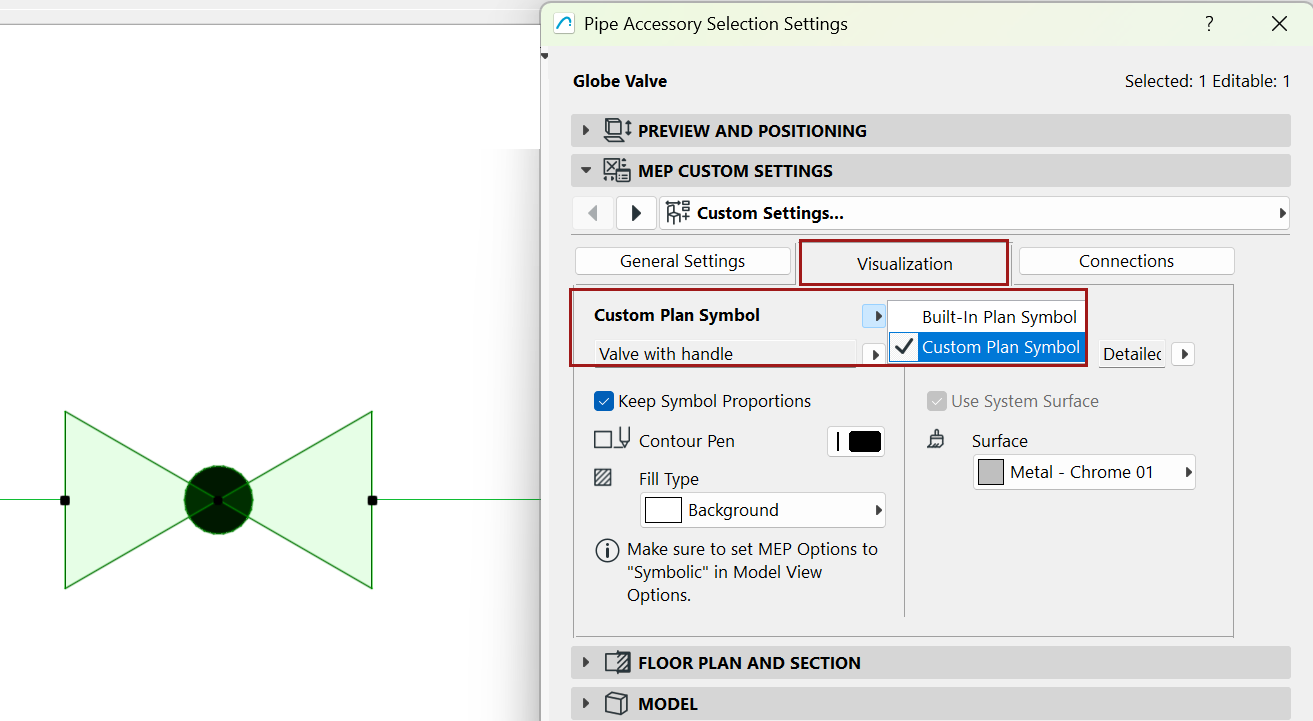
- From the popup, choose your saved Custom MEP Symbol.
- The valve is now displayed using your custom MEP symbol.

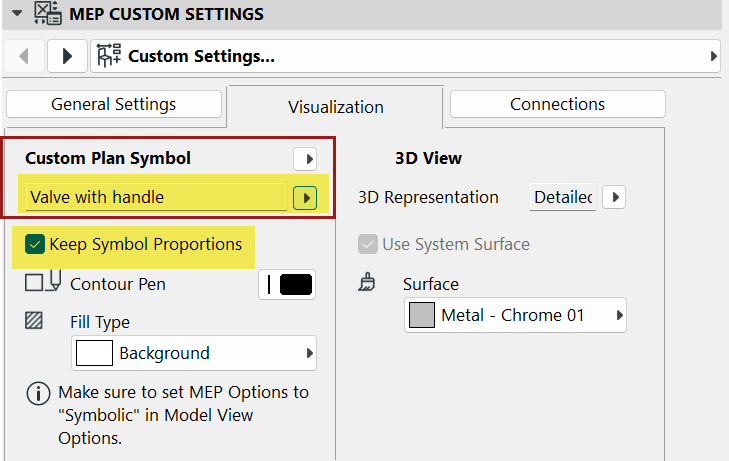
Drag a hotspot to rescale the symbol graphically, if needed.
Watch the Video: Custom symbol creation
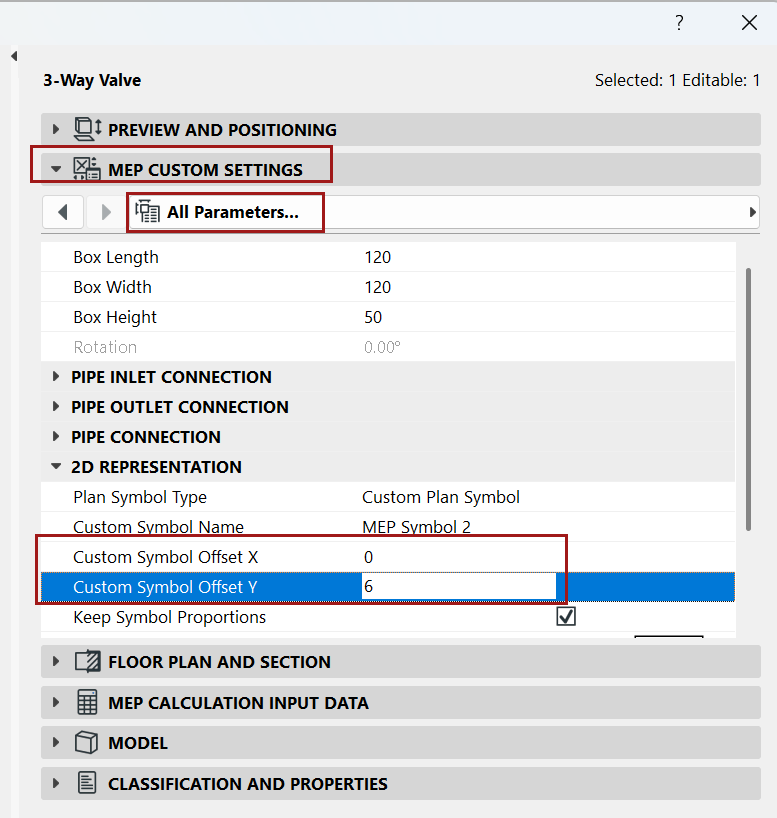
Adjust alignment of custom symbol - use Offset parameters
If the new symbol is not positioned correctly in the plan: