Finalize migration
After migration, review the results, then click Finalize migration.
Your migrated projects are now available alongside your original projects on BIMcloud, renamed according to your migration preferences.
From the appearing dialog: choose one of the following options to finalize migration:
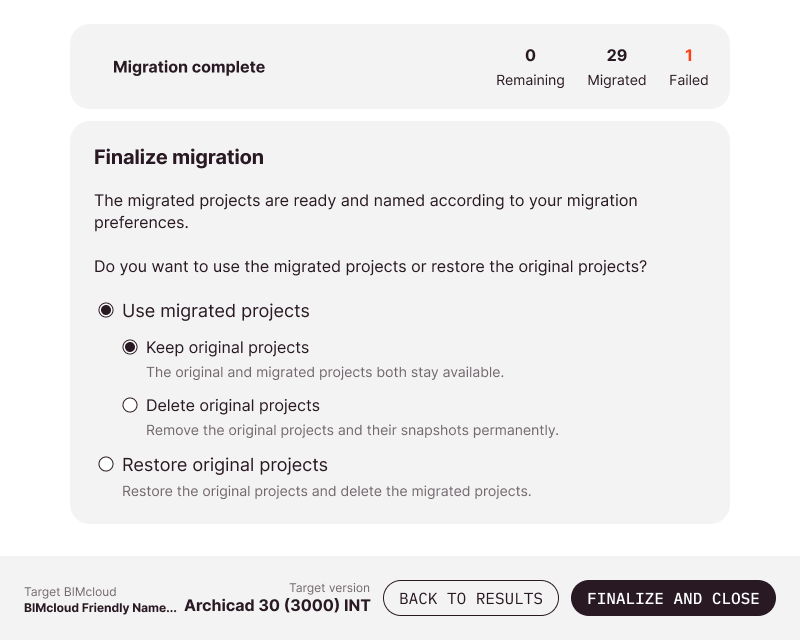
- Use migrated projects: Keep the migrated projects.
- Keep original projects: Both original and migrated projects remain in place.
- Delete original projects: Removes original projects and their snapshots, preventing restoration. Use only if storage space is severely limited.
- Restore original projects: Removes migrated projects and restores originals.
Note:
- Migration disconnects all joined users from the Teamwork project. The Restore original projects option does not rejoin users. Affected users must save unsent changes locally before they can rejoin.
- Deleting original projects or restoring them requires additional BIMcloud operations. Wait until these finish. Do not turn off your computer or close the tool during this process.
Failed projects
Multiple project failures may share a single cause. To prevent most failures, see Preparations for the application.
To learn why a project failed, click the Back to results button, then Show console to view error messages.
To proceed in a situation where the results include one or more failed projects, you
have two options:
- Restore original projects. Removes migrated projects and restores originals. You can keep working in Teamwork projects as before, in their original (non-migrated) versions.
- Use migrated projects (and Keep original projects). Start working with the successfully migrated projects. For the failed ones, restart the Teamwork Multiproject Migration Tool and try migrating them again.