Troubleshoot problems
Most migrations complete without issues if you follow the preparation steps for BIMcloud, Archicad, and your computer. Read about preparation here: Preparing for migration
If your Teamwork projects fail to migrate, check how many failed: on the Migration complete or Finalize migration screen, see the counters in the header.
-
If one or two projects failed while most succeeded, the problem is probably specific to those projects.
-
If all or most projects failed, the problem probably stems from permissions, licenses, BIMcloud settings, or an Archicad installation.
Console view
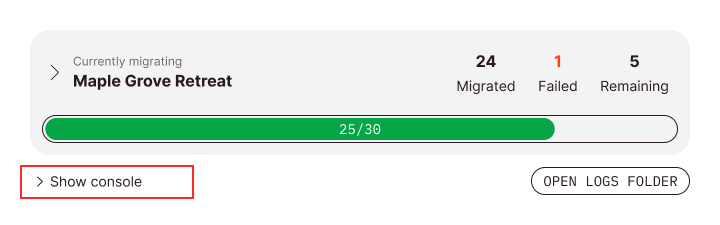
To find more information about why a Teamwork project failed, click the Show console button on the migration screen, either during or after migration. From the Finalize migration screen, click Back to results button to access this screen.
The console shows steps taken by Teamwork Multiproject Migration Tool for each project. Scroll to find the last error line, which can indicate whether the issue is with BIMcloud or Archicad.
If only a few projects have failed:
- Check if those projects use a different Archicad version or update. You may need to install the exact Archicad version matching your project.
- Ensure (or ask your BIMcloud administrator to confirm) that your user has the necessary permissions on those projects and their parent folders.
You can try migrating the failed projects manually from Archicad.
If several projects have failed:
- Check if they share the same major version. Your Archicad installation might be causing the problem. Open Archicad, accept current legal notices, ensure you have a license, and confirm that no errors appear when creating a new project.
- If the failed projects are located on a similar path, you might lack permissions to migrate Teamwork projects in those folders.
- Ensure that your computer has a stable connection with BIMcloud, that your BIMcloud user has a license, and that the BIMcloud Server hosting the projects runs without issues.
- Confirm that you have sufficient free space on your computer and, for BIMcloud on-premises, on the server machines.
Migration log folder
If the console does not provide enough information, access detailed logs by clicking the Open logs folder button. These logs record all communication with BIMcloud and Archicad and are mainly for support cases.
Restore projects later
The Teamwork Multiproject Migration Tool can only restore original projects while the tool remains open, on the Finalize Migration screen.
After closing the Migration Tool, you can still restore a project manually:
- Log in to BIMcloud in your browser
- Move, rename, or delete the migrated version
- Rename the original Teamwork project to its pre-migration name
- Locate and rename all Teamwork projects hotlinked to the original project
Missing or incompatible hotlinks after migration
After migration, hotlinked Teamwork projects still link to their original project name. If you renamed the migrated project in Migration preferences, hotlinks will continue to reference the original project version. To resolve this, you can manually relink the Teamwork projects or rename them to the original name.