Select projects for migration
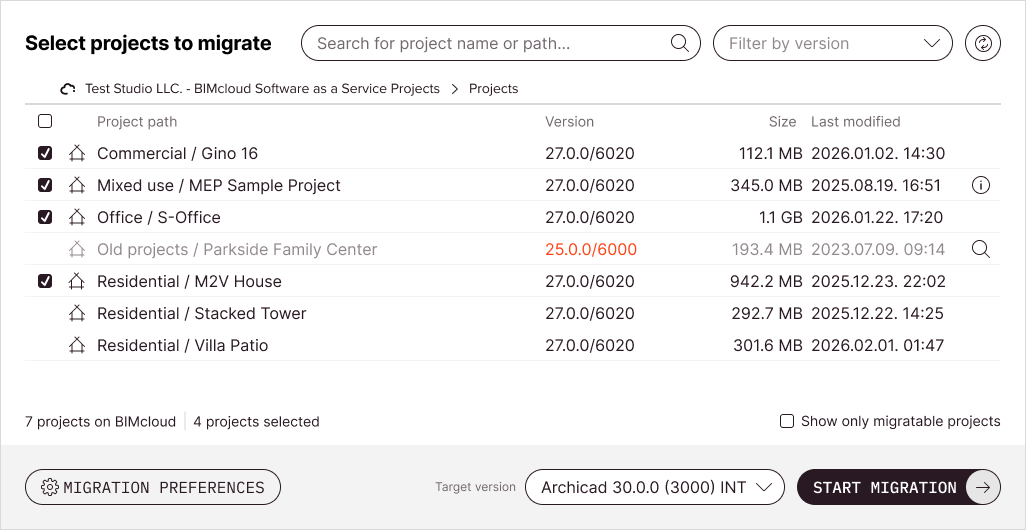
After signing in with your Graphisoft ID and BIMcloud accounts, the Teamwork Multiproject Migration Tool’s main screen displays all available Teamwork projects.
Selecting projects
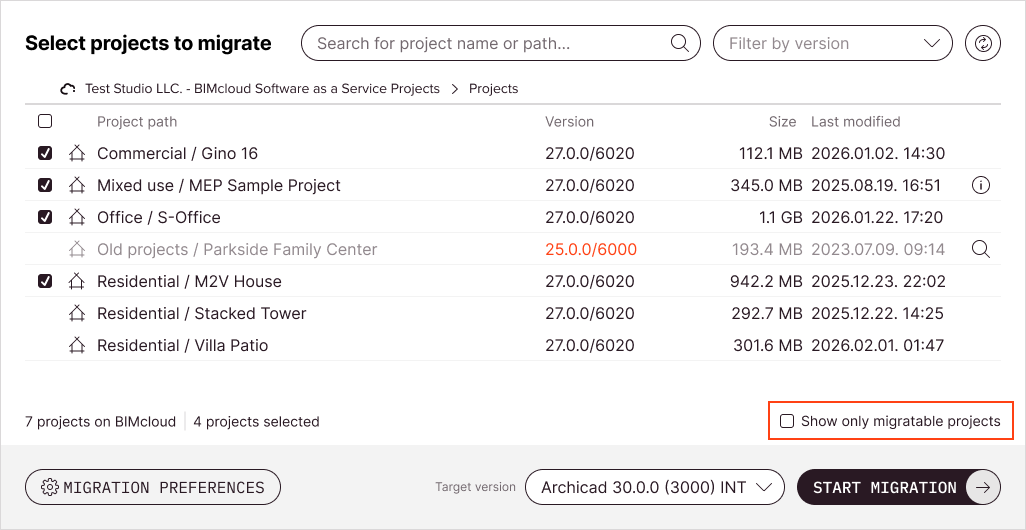
Select a Teamwork project for migration by clicking it or checking its checkbox.
To select all migratable projects, click the multiselection checkbox in the list header.
The number of selected projects appears below the list.
Project selection can depend on detected Archicad installations and the target Archicad version. Projects that cannot be migrated appear in grey with an icon on the right. Hover over such projects to see the reason. Possible reasons:
- Project version is up-to-date: Shown in green text. The target Archicad version matches or is lower than the project version, so migration is unnecessary.
- No compatible Archicad detected: Shown in red text. No Archicad
installation matches the project’s major version and updates. An exactly
matching Archicad version is required. If your Archicad installation is not
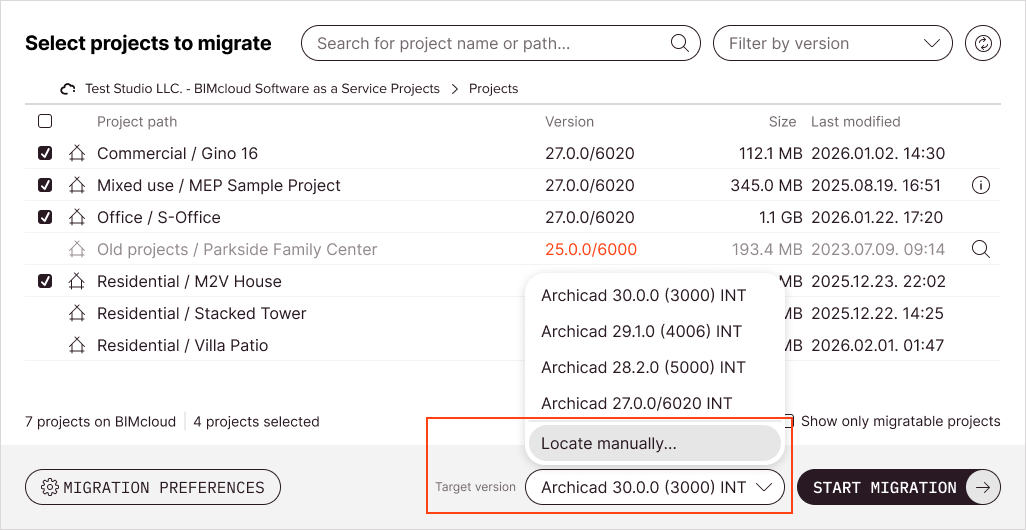
detected automatically, open the Target version selector, then click Locate
manually and browse for the folder that contains the relevant Archicad
executable.Note: Archicad 20 and 21 are not detected automatically; you must locate these installations manually.
- Host Server offline or missing project data: The Teamwork project is inaccessible. Ensure that your BIMcloud Server is running and that BIMcloud Manager can connect to it.
- Lack permission to "Delete/remove folder content": On the Finalize Migration screen, some options include deleting either the original or the migrated project. If you lack this permission (for the project or its parent folder), the tool will migrate the project, but can't delete the original or the migrated version, and so can't revert the migration process - even if you chose such an option on the Finalize Migration screen.
- Lack permission to "Modify details" or "Lock / unlock Teamwork Project" or "Modify content" on the parent folder: Your role or custom permissions don't allow migrating this Teamwork project.
See Preparations for the application for required permissions.
Filter project list
You can filter the list of Teamwork projects with these functions:
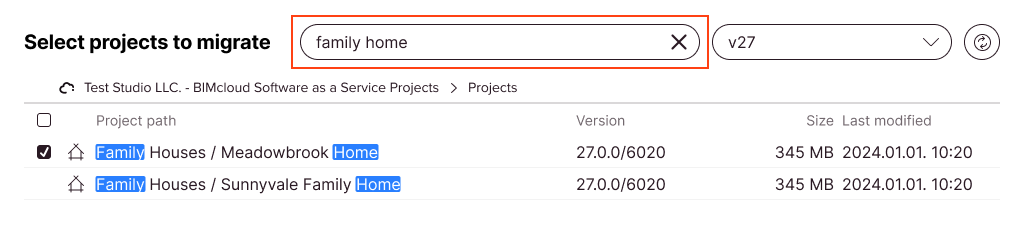
- Search: Find projects by name or parent folder. Press Enter to search.
Use spaces to add multiple words. Only exact matches appear. Search terms can be
combined.
- Show only migratable projects: Check to hide projects that cannot be
selected for migration.
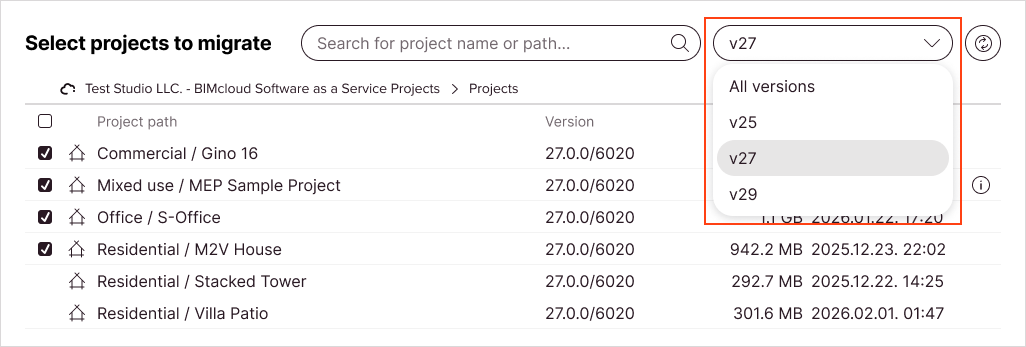
- Filter by version: Select a major version to display only projects from
that version. Choose All versions to clear the filter.
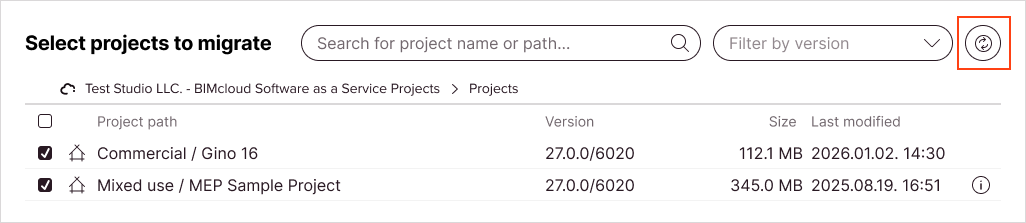
Project changes and Archicad installations added while the application is running are not detected automatically. Click the Refresh button next to the filters to sync changes.