Create or duplicate a tag
Make a new tag or copy an existing one
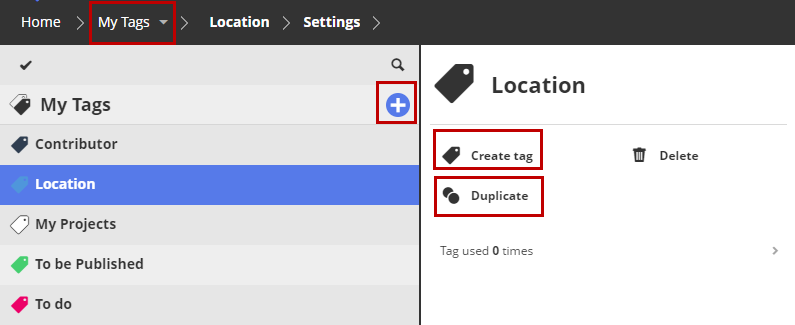
Open the My Tags page of BIMcloud Manager.
Do one of the following:
Click the plus sign from the My Tags root item
Click the Create Tag command
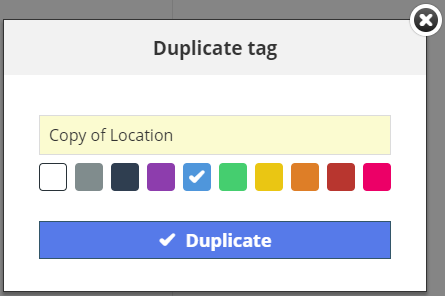
Select an existing tag, then choose Duplicate.
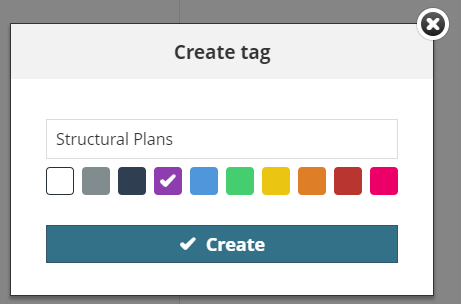
In the appearing dialog, enter the name of the new (or duplicate) tag. Each tag name must be unique.
Click one of the ten color buttons to use it for the new tag. You can re-use colors for any number of tags.
Note: You can also create a new Tag on the Projects page.