Find items by using tags
Use tags to filter and locate project items in BIMcloud Manager
Do one of the following:
Search for Tag (Projects Page)
Open the Projects page of BIMcloud Manager.
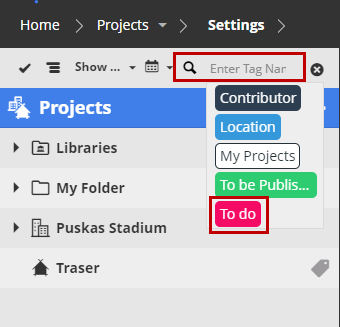
Click the search icon.
Click into the search field. Tags are now listed.
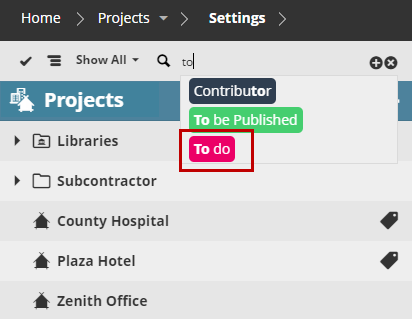
Click on the desired tag to add it to the search filter, or start typing a tag name (e.g. “To do”).
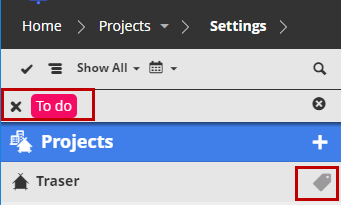
Add as many tags as needed. The resulting list is filtered based on those tags.
Add Search Term
To add a search term (text and/or tag), type it in and click the Plus sign.
To search by just text (instead of tag), type in the text and press Enter.
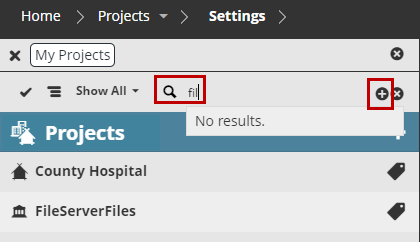
Click x in the Search field to cancel the search and display all elements again.
Filter Items by Tag (Projects Page)
Open the Projects page of BIMcloud Manager.
Select an item.
In the summary section, click the tag you want to filter for, to open its drop-down menu.
Click Filter Projects.
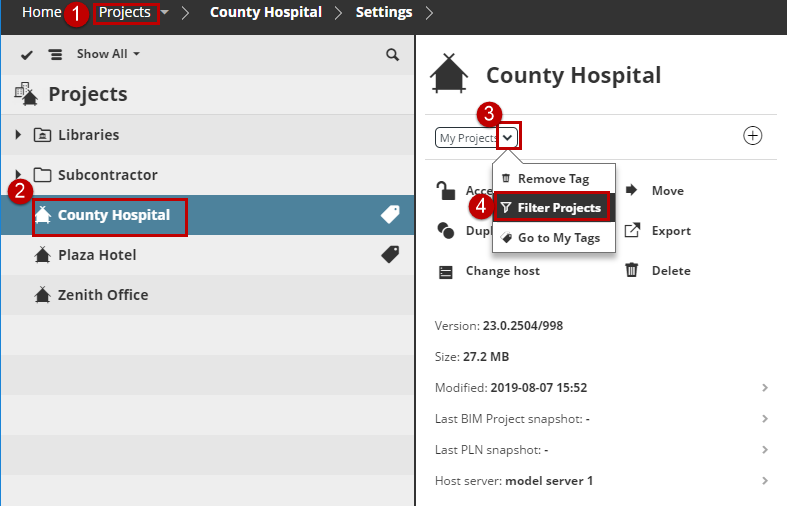
The list is filtered to show all items with that tag.
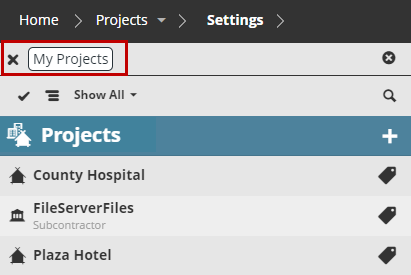
Filter Items by Tag (My Tags)
Open the My Tags page of BIMcloud Manager.
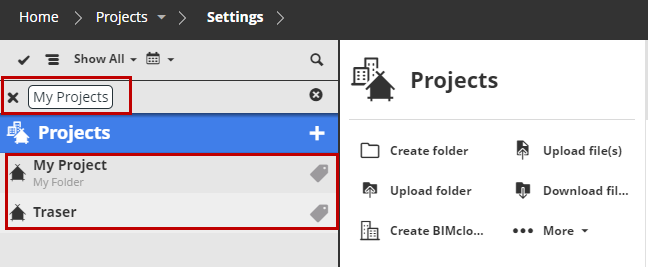
Select the tag you want to filter for (e.g. “My Projects”).
Click the “Tag used” line.
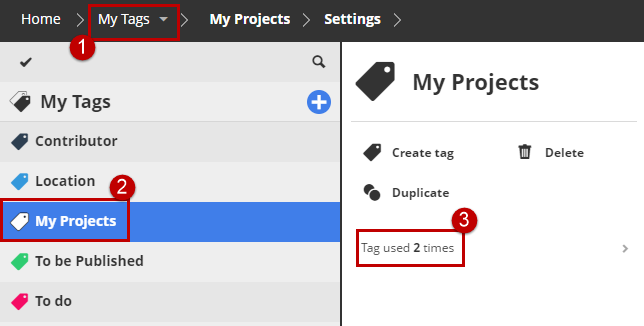
The Projects page opens: the list is now filtered to show all projects that use the tag.