Create or duplicate user group
Create or duplicate a user group on BIMcloud
For most BIMcloud SaaS setups, it is recommended to assign users to the appropriate predefined user group(s), rather than creating new ones. In the default BIMcloud SaaS, the predefined user groups have been given access, with predefined roles, to the appropriate content (e.g. Projects root folder). Therefore, after a user is added to a relevant group, they can begin working with the correct permissions.
See Best practices for user groups and roles
If needed, you can create custom user groups.
Create user group
On the Users and groups page:
Click the plus-sign pop-up and choose Create Group. (If the Users and groups root is selected, you can also choose the command from the Summary panel.)
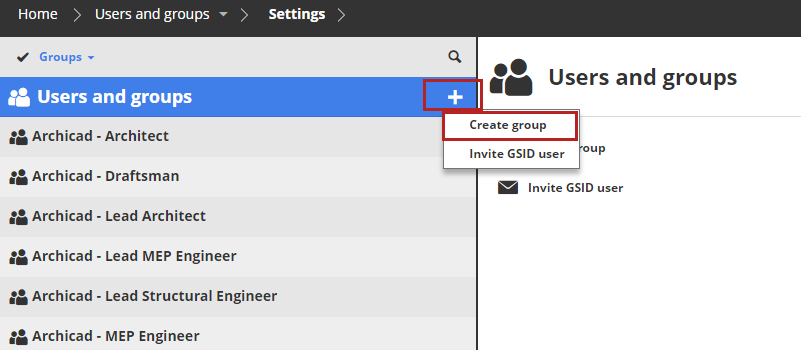
Enter the name of the group in the dialog and click Create.
- Do not use a period at the end of the group name
- Do not use non-printing or special characters such as <>:;*?"|/\
The Group settings panel will open; you can start to add members to your new group.
After creating the group and adding members, make sure you also grant the proper access rights to the group.
See Best practices for user groups and roles
Use the Access panel of the BIMcloud items to grant a Role to a User or Group for the currently selected item (e.g. Project Root, Folder, or Project).
Access granted at a higher level of the folder hierarchy is inherited downwards by all of its child elements.
See Grant access
Duplicate user group
Select the existing user or group, then click Duplicate.
Members of the original group are automatically included in the duplicate group.

Give the duplicate group a new name.