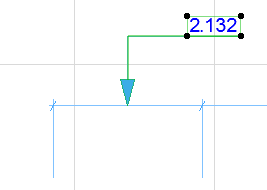
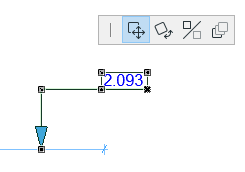
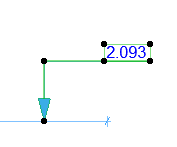
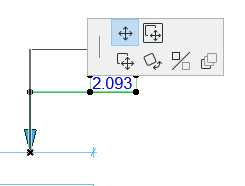
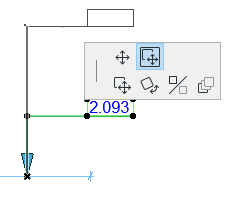
To select a Dimension or Label text box, do one of the following:
Use the Quick Selection cursor
Click on a corner of the text with the Checkmark with Arrow cursorFigure 1. Select Text Box
Once you select a text box, you can change its position and/or
orientation using Edit functions (e.g., Drag, Rotate, Mirror).
Note: If the Text box also has a Pointer Line, the Lock Angle
control affects the range of graphical editing. If it is ON, the Pointer Line’s starting
angle remains fixed, limiting the edit possibilities.
Delete Text Box
Deleting the Dimension Text deletes the corresponding Dimension segment
too.
Select Text Box Plus Pointer Line
If you click the Pointer line, both the line and the text box are
selected, enabling additional editing options.
Automatic Dimension Text Placement in Linear Dimensions
Crowded Dimension Texts are adjusted to enhance readability. The default
method is usually satisfactory. For more control over how dimension texts are distributed,
use the options at in Dimension Settings: