You should create backups of your Teamwork projects to ensure that you can keep working in case of emergency, even if your BIM Server malfunctions.
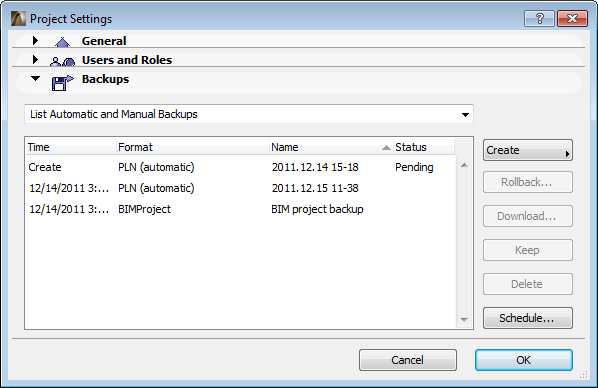
Use the Backups panel of Teamwork Project Settings to create and manage project backups of two kinds: BIM Project backups and PLN Project backups.
Both types of project backups can be created either automatically (according to a pre-set schedule) or manually at any time - for example, whenever the project reaches particular milestones. Project backups can be kept indefinitely.
If you export a Teamwork project, you have the option of including automatic and/or manual backups as part of the exported file.
Note: To create and schedule backups, you must be a Project Administrator.
Note for Server Administrators: For information on using command line tools for backing up data from the BIM Server.
See Complete BIM Server Backup.
Restoring Project Data Using Backups
Saving Design Variations of Teamwork Projects: Suggested Workflow
BIM Project Backups contain model data, plus all BIM Server-related information, such as user data and roles. You can resume working as soon as the backup file is restored to any BIM Server – no need to re-add users or re-define roles.
BIM Project Backups are created and managed by the BIM Server without any user interaction. By default, a new BIM Project Backup is created every hour, but you can reset the schedule to fit your company’s needs.
PLN Project Backups contain your model data only, and can be used to reopen the project in solo ArchiCAD mode. If your BIM Server crashes, yet you need to keep working while the server is restored, open this PLN file as a solo project, using any current or future version of ArchiCAD.
(As soon the BIM Server is running again, re-share the project and continue working in Teamwork.)
By default, PLN backups are created daily, but you can reset the schedule to fit your company’s needs.
The PLN Backup process utilizes a client’s computer and requires client confirmation. While the backup is in process, that client cannot use ArchiCAD. The backup takes about as long as it takes to save the project file.
Note: PLN backups will only be run on the computers of those users whose role includes the following access right: “PLN Backup - Use computer for creating”.
Schedule automatic backups (either PLN format or BIM format) in one of two ways:
•When sharing a solo ArchiCAD project, click Backup Options from the Teamwork > Project > Share dialog box.
See Share a Teamwork Project in ArchiCAD.
•In the Backups panel of Teamwork Project Settings: click Schedule.
The Project Backup Schedule dialog box opens:
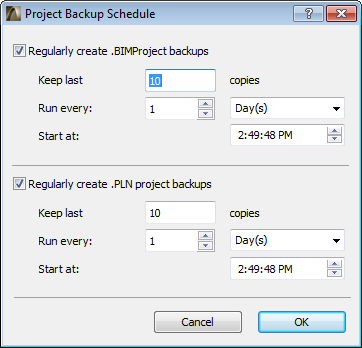
Regularly create backups: Check one or both boxes to regularly create BIM Project backups and/or PLN project backups automatically.
Keep last: Enter the number of automatic backups to keep. With each additional automatic backup, the oldest stored backup will be deleted.
Exception: You can opt to keep any particular automatic backup file indefinitely.
Run every: Enter the interval (in minutes, hours or days) for creating automatic backups.
If you define the interval in Days, the Start at field lets you set the time.
A BIM Project backup will be created automatically in the background according to the schedule set in the Project Backup Schedule dialog box.
See Schedule Automatic Backups.
No user interaction is needed. The backup file is listed in the Backup panel of Project Settings.
A PLN Project backup utilizes a client’s computer and requires client confirmation before the backup can be created.
When it is time for a scheduled PLN backup, all clients (whose role includes the access right entitled “PLN Backup - Use computer for creating”) will notice a “pending backup” icon in the Teamwork Palette accompanying the Send & Receive commands.
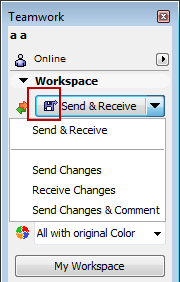
This means that - once the time comes for a scheduled PLN backup - if a user issues any of these commands (Send & Receive, Send Changes, Receive Changes, or Send Changes & Comment), he/she will be informed that a PLN backup is pending, and that a full Send & Receive is necessary to carry this out.
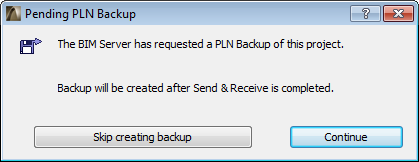
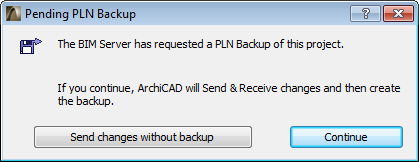
The two options:
1.Click Continue. A Send & Receive will occur, followed by the PLN backup process.
2.Click the other button (its text varies depending on the command issued). The original command will be carried out (e.g. Send & Receive), but no backup will take place.
Although any number of online users may be alerted to and asked to perform a pending PLN backup, only one of them needs to click “Continue” to carry it out. (At this point, the “pending” icon disappears from the Teamwork Palette.)
The rest of the users can work as usual.
While the PLN backup is in progress, the confirming user cannot work in ArchiCAD and sees the following notice:

If none of the users clicks “Continue,” and all of them choose to skip the Backup process, the PLN project backup cannot be created. The “pending backup” icon remains visible on the Teamwork Palette, until one user agrees to do a full Send & Receive followed by the backup.
You can create a Project Backup manually at any time, from either ArchiCAD or BIM Server Manager.
From ArchiCAD:
1.Click the Create button from the Backups panel and choose the type of backup (BIM Project or PLN) you need.
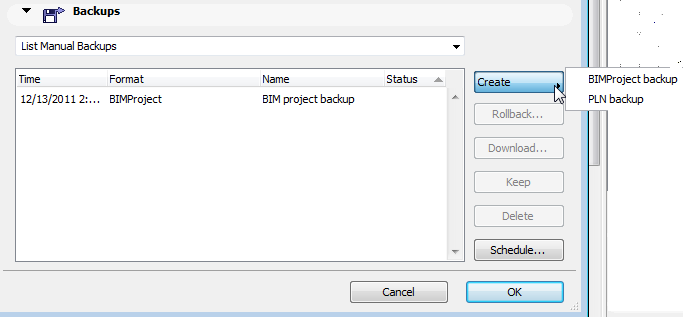
2.Enter a name for the backup copy.
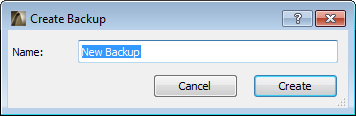
3.Click Create.
The new Backup appears in the Backups panel, with a Status of “Create.” This indicates that the backup will be created after you click OK to close Project Settings.
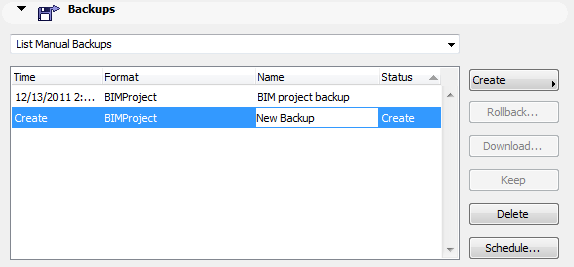
For BIM Project Backups:
•Click OK to close Project Settings and create the new backup. The next time you open Project Settings, the new backup is listed.
For PLN Project Backups:
•You will be informed that a PLN backup is pending, and that a Send & Receive is necessary to carry this out.
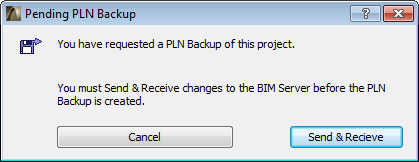
•Click Send & Receive to send/receive changes to the server and create the PLN Backup file; or
•Click Cancel. No PLN backup is created.
From Server Manager:
If you opened Project Settings from the Server Manager (and not from ArchiCAD), then all clients are informed (via an icon in the Teamwork Palette) that a backup is pending.
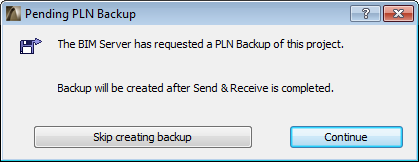
Henceforth, the process is the same as for an automatically scheduled PLN backup.
See Automatic PLN Project Backups.
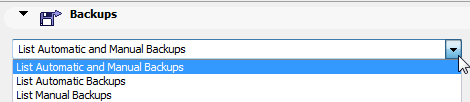
List Backups: Use the pop-up at the top of the Backups tab page to list just the Automatic Backups, just the Manual ones, or both.
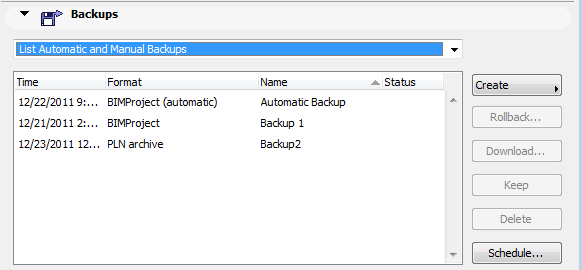
Keep Automatic Backup: If you select an Automatic backup in the Backups list, the Keep button becomes available.
Click Keep to retain this automatic backup even after it would otherwise be scheduled to be deleted. (This schedule is defined in the Project Backup Schedule dialog box.)
See Schedule Automatic Backups.
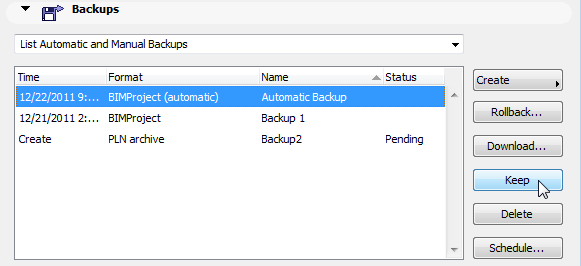
This action takes effect after you click OK to close Project Settings.
In effect, the automatic backup - after Keep - becomes a Manual Backup, with an editable Name, and will henceforth be listed as a Manual Backup.
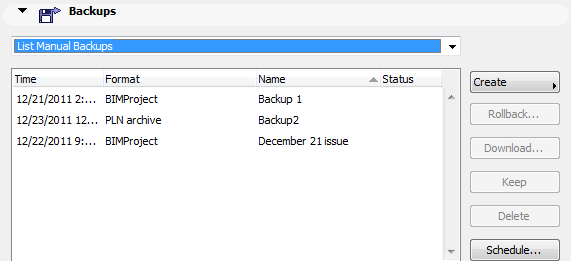
Download Backup: Select any Backup from the list and click Download.
Choose a destination folder for the selected backup file.
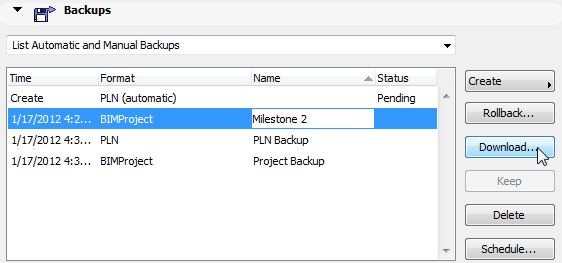
Delete Backup: Select any Backup from the list and click Delete.
This action takes effect after you click OK to close Project Settings.
The Delete button is also available for newly created backup entries, even if you have not yet clicked OK to actually create it (such entries will show a status of Create.)
Automatic backups are automatically deleted one by one, oldest first, whenever the program exceeds the maximum number of backups, as defined at the “Keep Last” control of the Backup Schedule.
Exception: You can opt to keep any automatic backup indefinitely.