
The ArchiCAD PhotoRendering feature allows you to create photorealistic images of the model as a snapshot of the current state of the project.
PhotoRendering allows you to go far beyond the possibilities offered by the views created in the 3D Window. This feature includes sophisticated effects that give you photorealistic or stylized images of the entire project or a selected part of it.
Photorealistic images are an ideal presentation and communication tool of architects and contractors; these images are the most understandable for customers and show an accurate, life-like view of the final building.
PhotoRendered images (or Model Pictures) are generated in a separate PhotoRendering window and cannot be edited. To keep them, you need to save them as separate files, independent from the model. Choosing Save when a PhotoRendering window is active will save the image file; the Project remains unaffected. Closing the PhotoRendering window without saving it discards the rendered image.
Important: PhotoRendered Model Pictures are not saved with your Project. If you wish to keep them, you have to save them manually. Closing a Model Picture Window that you haven’t saved means you won’t be able to access this image again.
Model Pictures are listed in the Window menu. You can keep several pictures open at the same time and compare them. You can also use the Marquee tool to select and copy parts of Model Pictures.
For more information, see Copy Cropped Image File with Marquee Tool.
Various types of picture files can be opened as model pictures: all QuickTime based image files and a number of additional formats are available.
ArchiCAD includes several engines that create different styles of photorendered pictures. The preferred engine can be selected in the pop-up menu on top of dialog box opened with Document > Creative Imaging > PhotoRendering Settings.
For more information, see PhotoRendering Settings.
Note: It is possible to use a different rendering engine for different parts of the project view - one engine for the top half of the window, another for the bottom half - and then splice the resulting images together in a photo editing program.
To create a rendered image, choose the Document > Creative Imaging > PhotoRender Projection command. This will instruct ArchiCAD to make a photorealistic picture of the current projection according to the settings defined in the PhotoRendering Settings dialog box. The rendering engines are:
•LightWorks Rendering Engine: This engine allows the most sophisticated rendered views, even if you rely only on the preset settings. LightWorks offers ray-tracing, soft-shadows, reflection features and complex shader editing capabilities. This engine creates expert renderings of the best quality available in ArchiCAD. LightWorks takes advantage of multi-processor systems and is thus generally faster than the other engines.
For more information, see LightWorks Rendering Engine (Add-On).
•Internal Rendering Engine: The Internal Engine is suitable for producing draft-quality or simple renderings offering shaded surfaces, simple shadows and transparencies.
For more information, see Internal Rendering Engine.
•Z-buffer Rendering Engine: This engine is similar to the Internal Engine but can work faster if the model is large and the shadow effect is switched on. However, a large amount of physical memory is recommended.
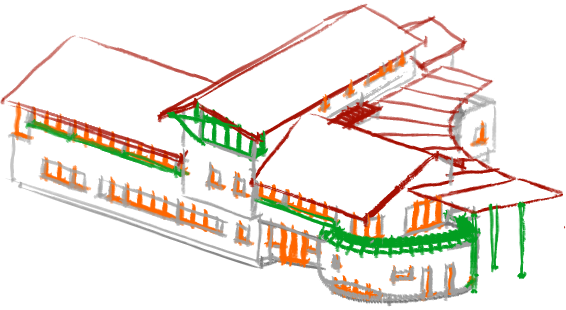
•Sketch: This produces non-photorealistic renderings that replicate sketched lines - best suited for draft views in the early project stages. Effects include felt tip, pencil, graphite and marker. Files used for sketch rendering are placed in the Add-Ons folder inside the ArchiCAD folder. In the SketchTextures subfolder, you can find the predefined style file named SketchPreset.txt as well as the line texture files, each placed in a separate subfolder of SketchTextures.
Below, the same building rendered with two different Sketch styles.
For more information, see Sketch Rendering Engine.
Topics in this section: