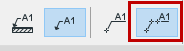
Label Geometry Methods: Associative and Independent
There are two ways to place a
label with the Label tool:
Independent labels are not associated to any element.
Typically, you will use an independent label to display information that does not come
from the model (e.g. “install snow picks here”).Figure 1. Independent Label
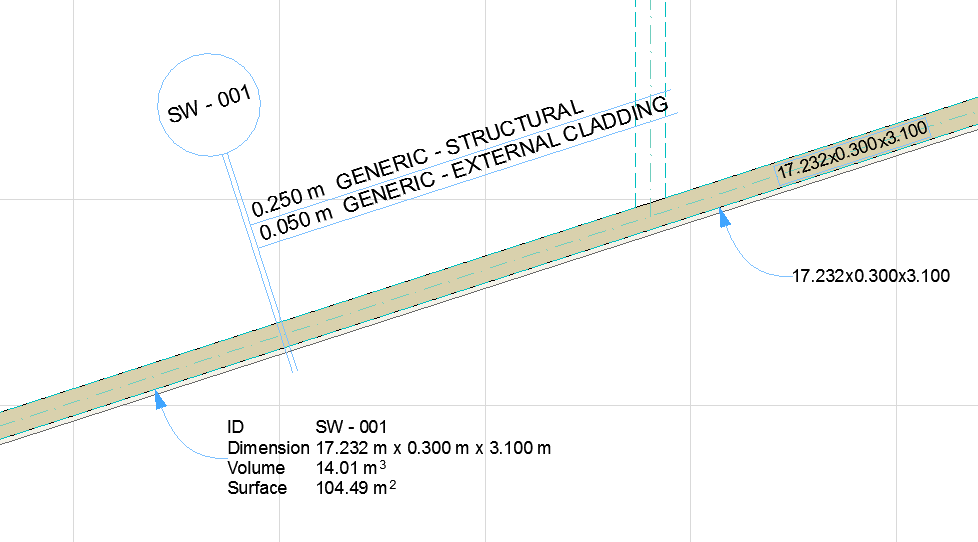
Associative labels are placed by clicking an element. The
label remains associated to the element even after you move or modify the element. As
applicable, any parameter values are automatically updated in the label.Figure 2. Associative Label
Note:
If you delete an element, its associated labels are also
deleted.
By default, a Label is hidden if its associated element is hidden
(e.g. on a hidden layer). To display the Label anyway, go to Label Tool Settings and
uncheck “Hide with Associated Element”.
Multi-story elements must be labeled on each story separately.
Associated Zone Labels can be placed in one step at the same time
the Zone is created: see Place Zone Label Automatically.
The Simple method places the Label with one click, using the
arrowhead and pointer line type/starting angle (if activated) as defined in the Info Box
or Label Settings.Figure 3. Simple Placement
The Detailed method requires three clicks (or two, if the
pointer line’s starting angle is locked), giving you more control over pointer line placement.Figure 4. Detailed Placement
See Pointer Line for
details on Pointer Line settings.